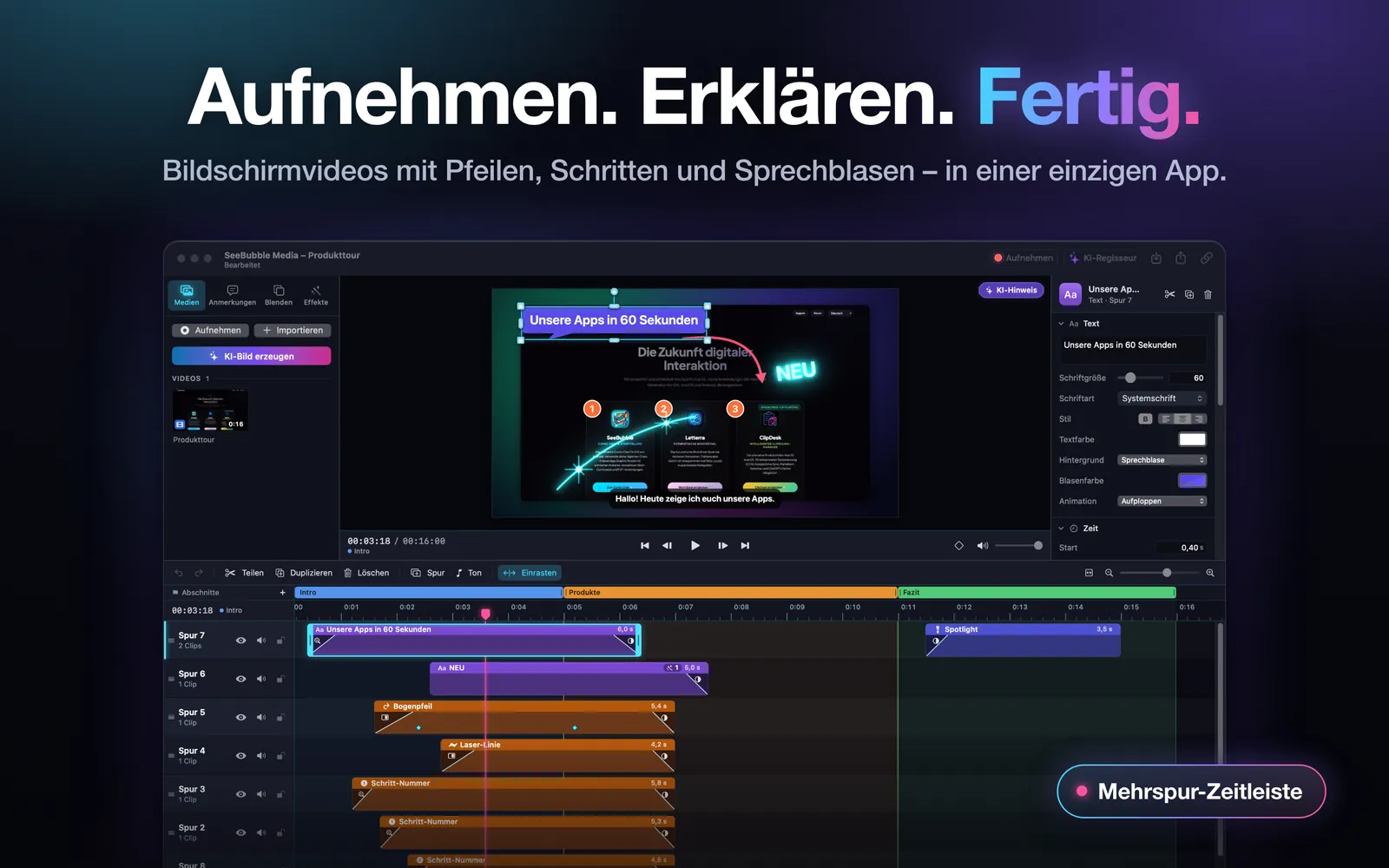
TrackCast is a screen recorder and video editor for the Mac in one app. Record your screen, a window, your camera or your iPhone, explain with arrows, step numbers and speech bubbles, and export the finished video for YouTube, TikTok and more.
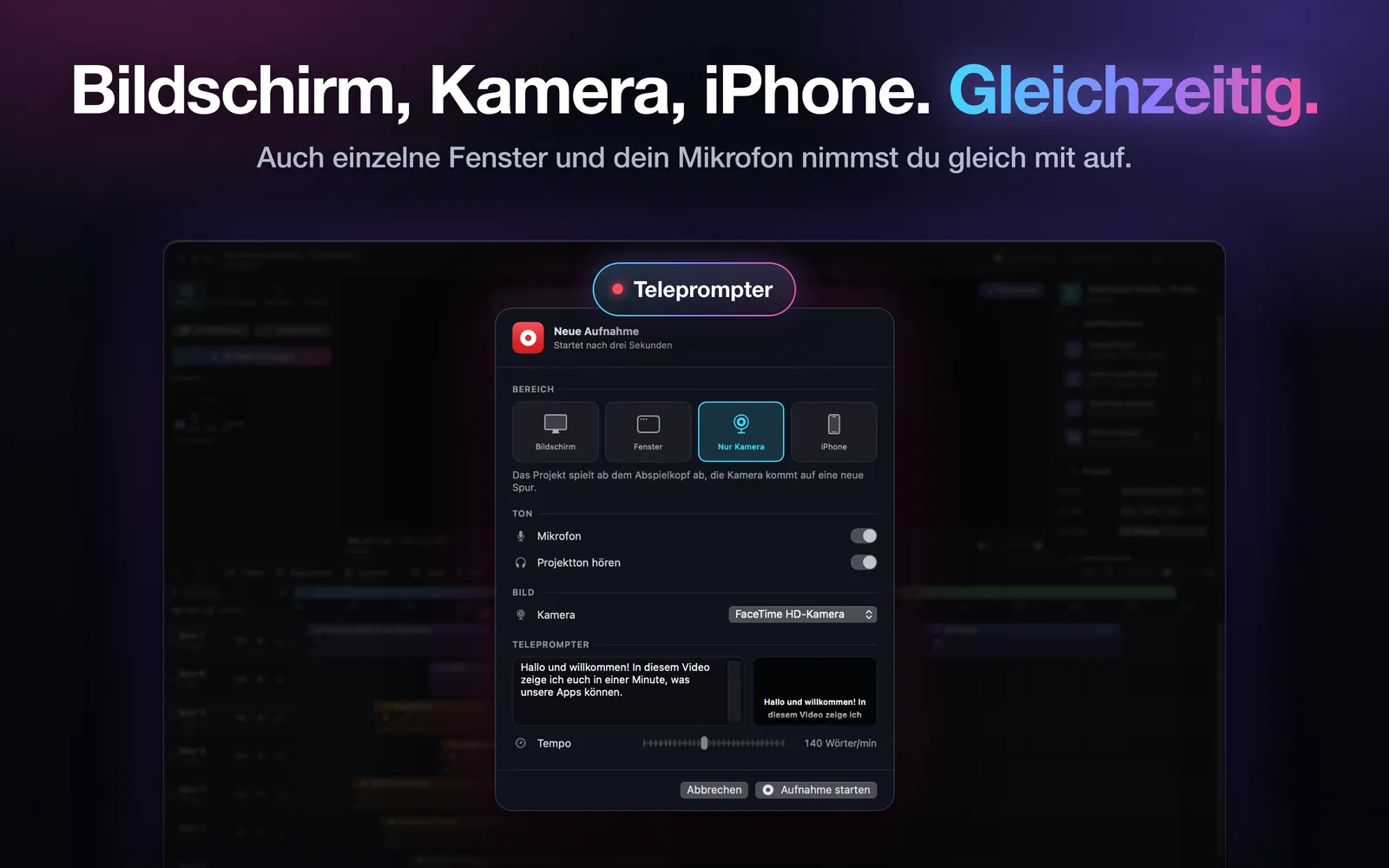
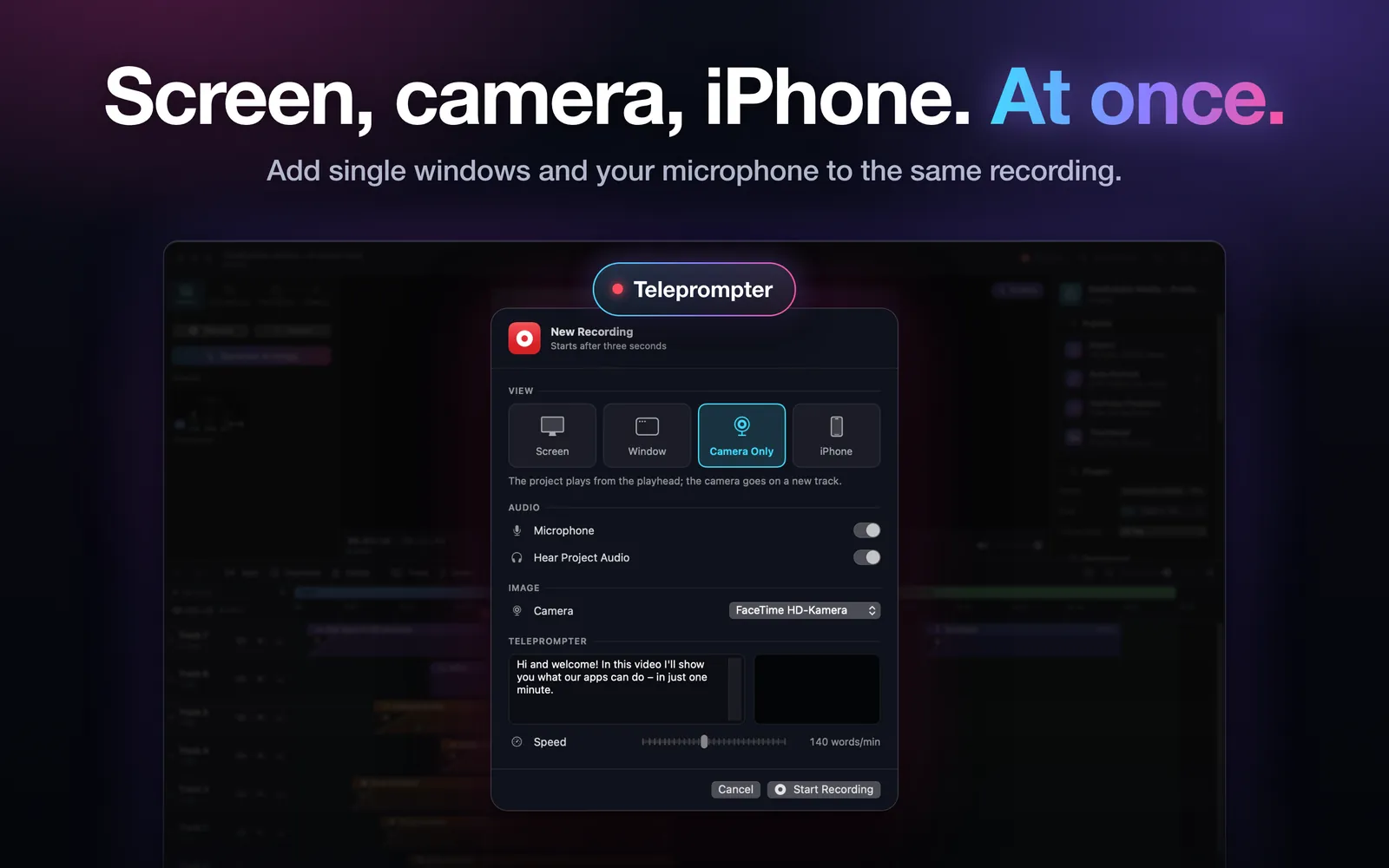
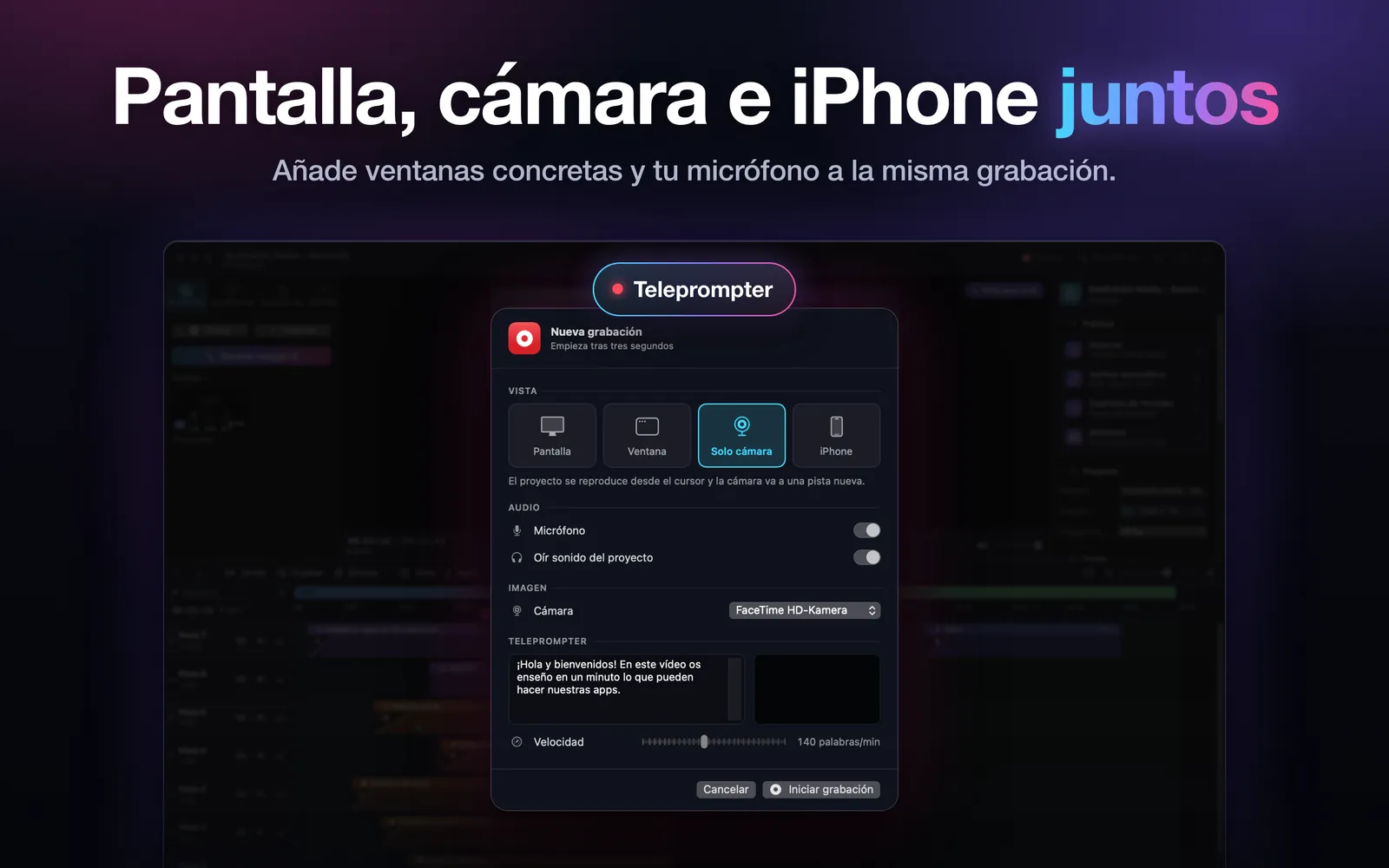
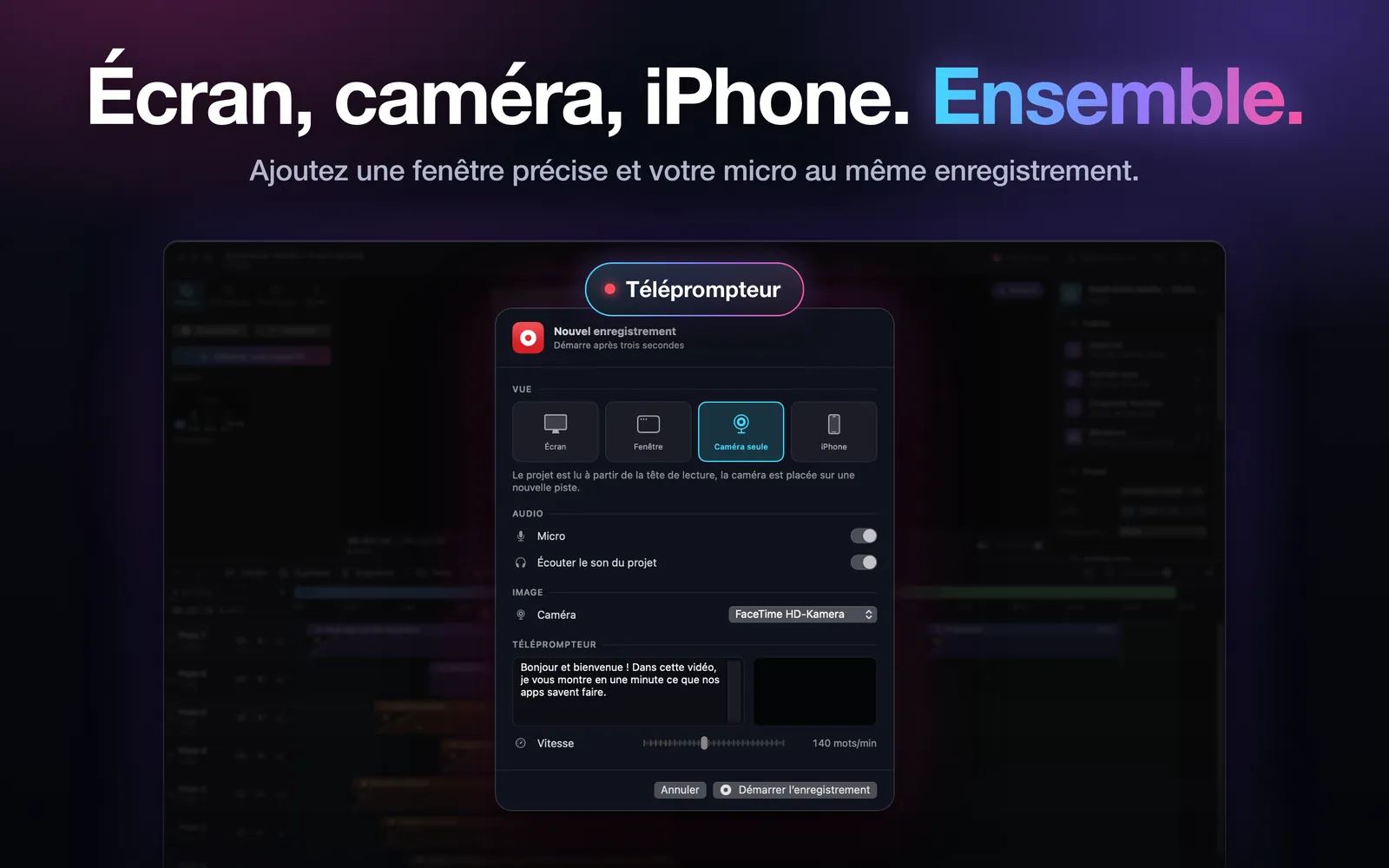
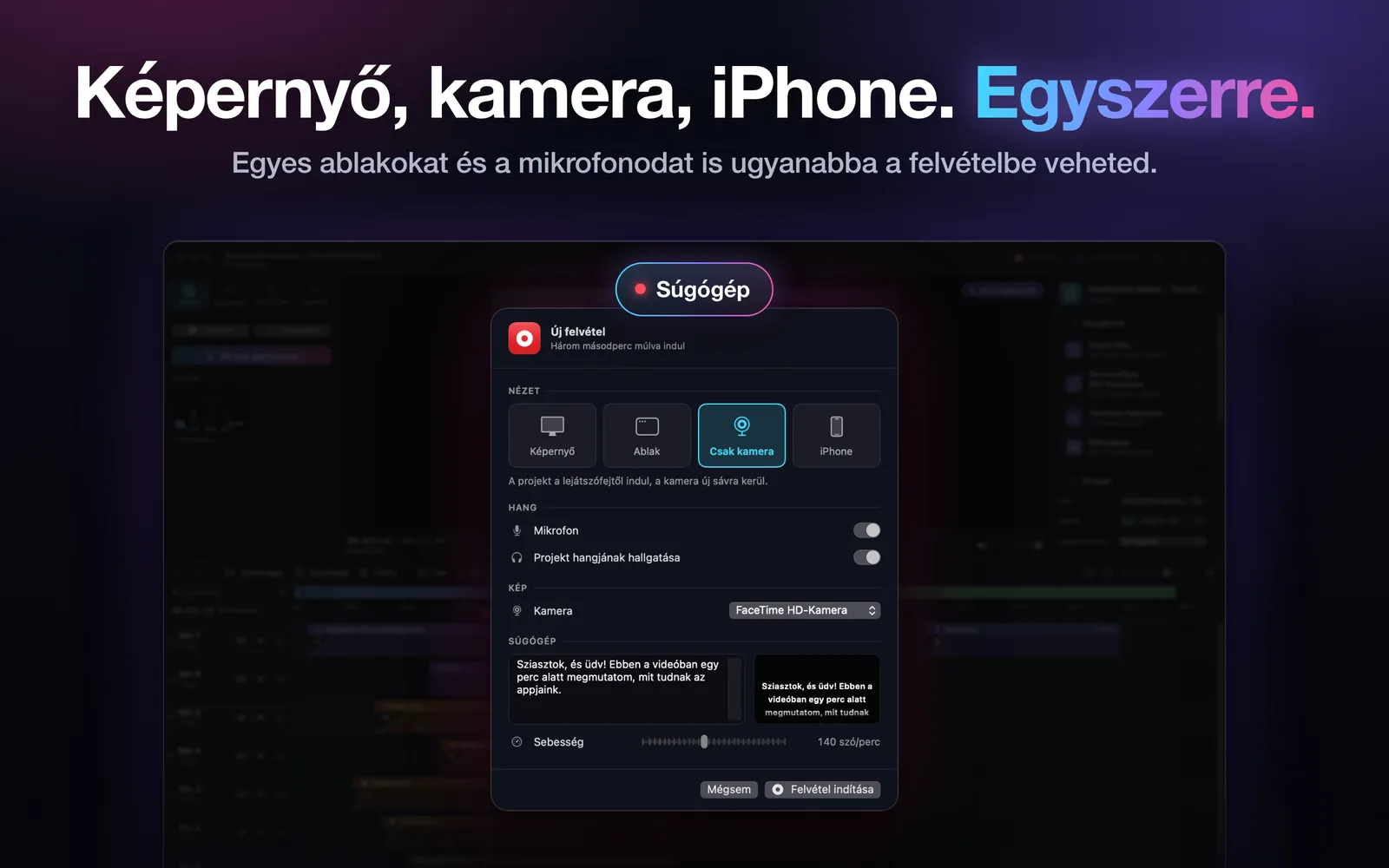
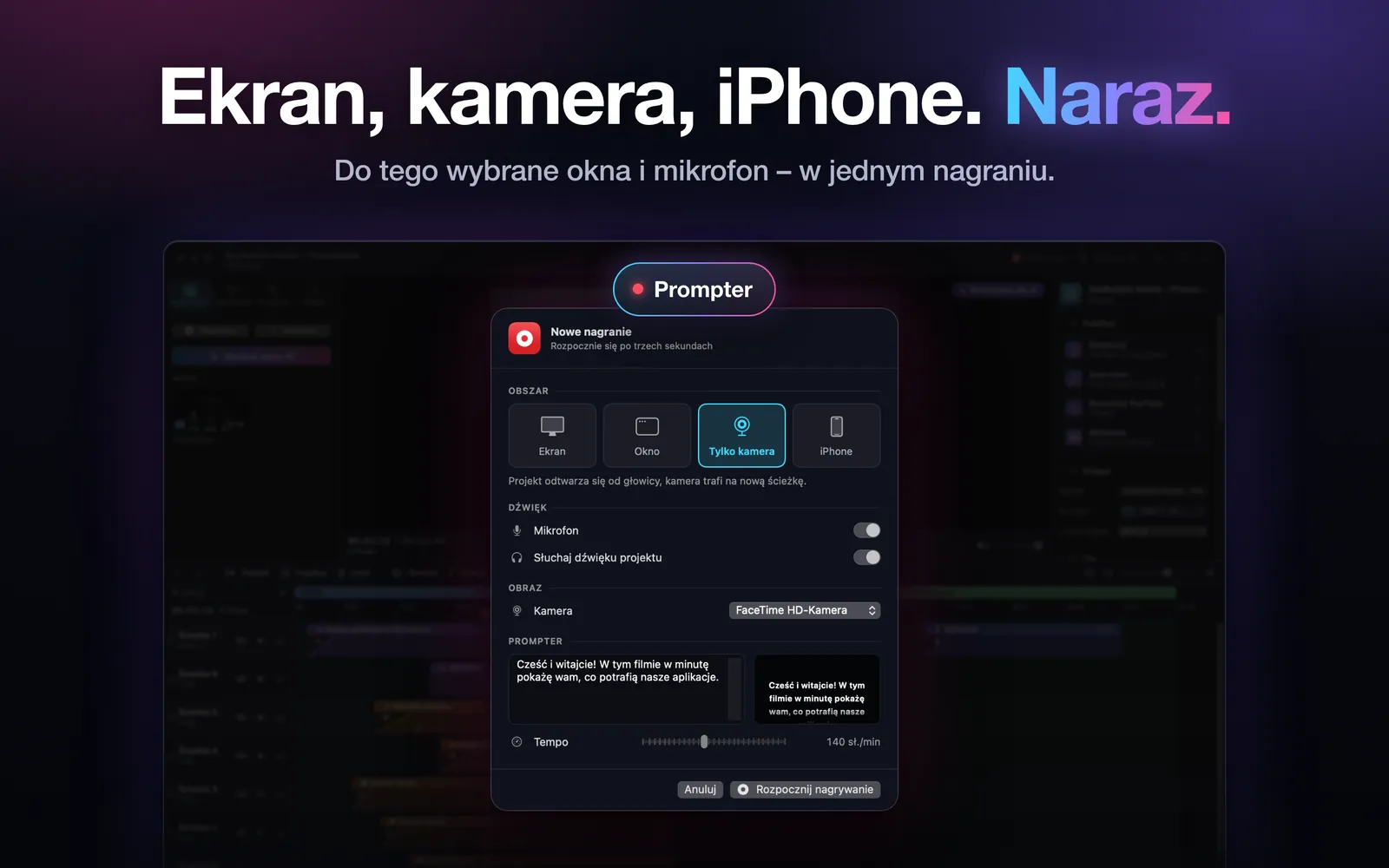
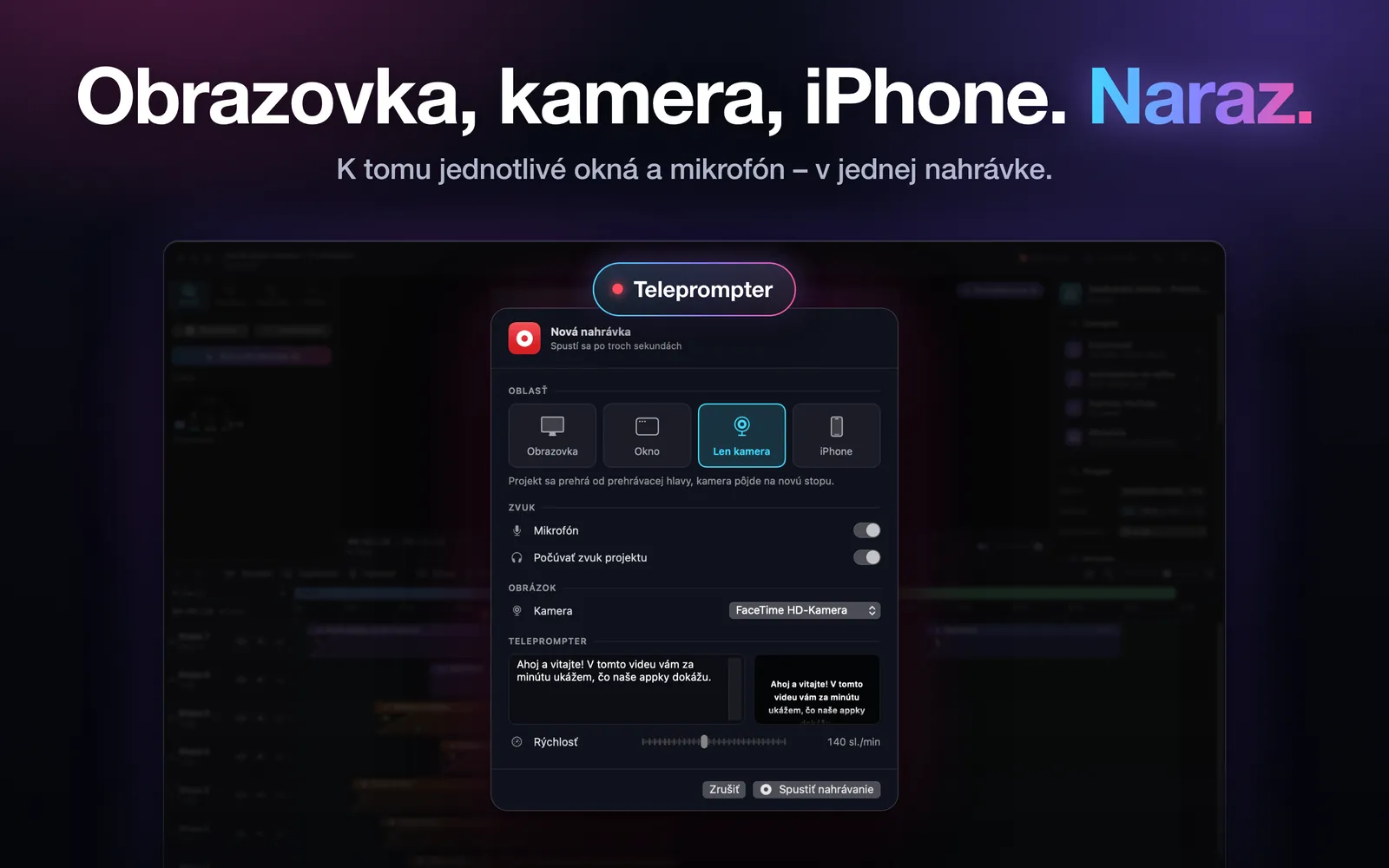
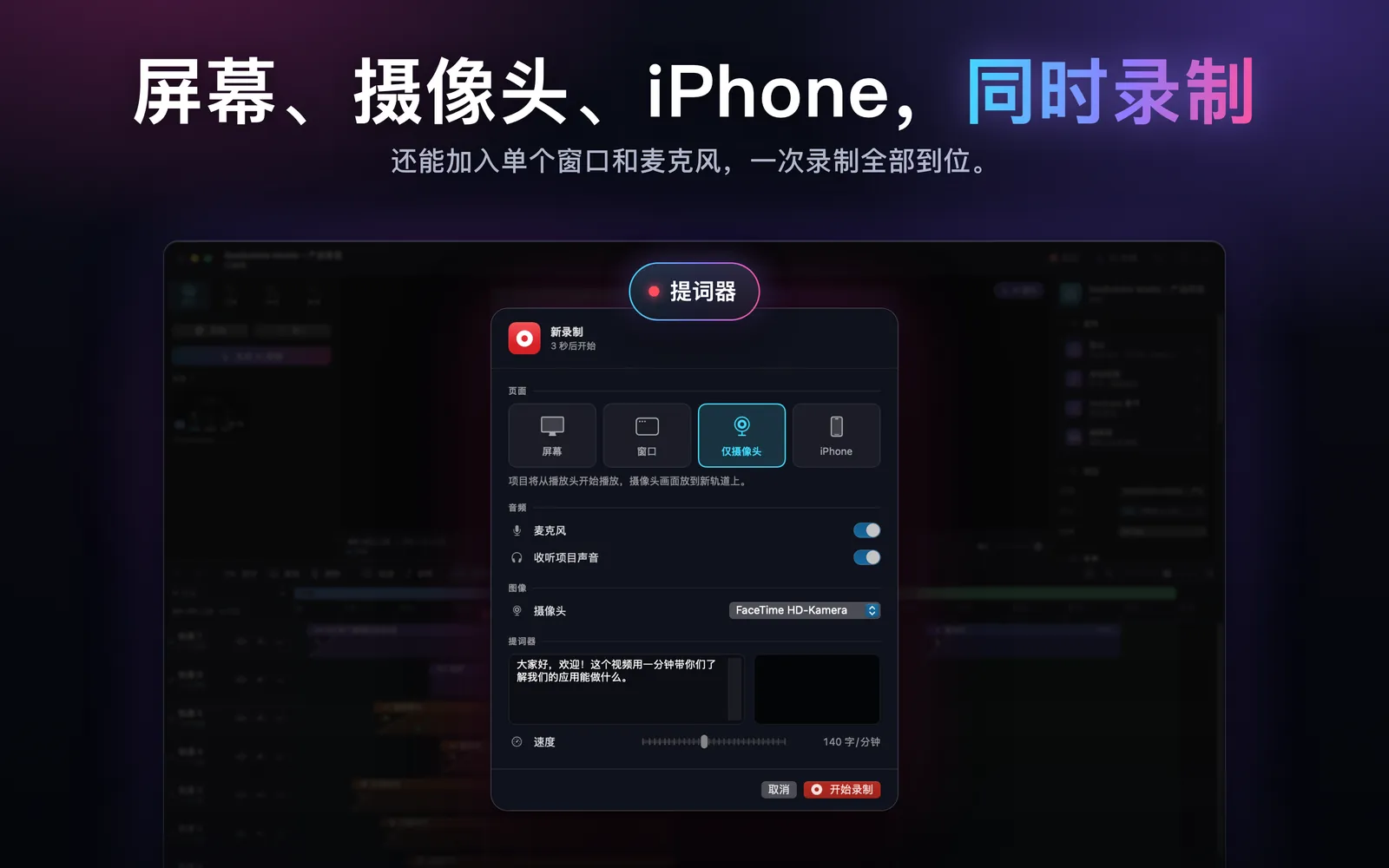
Record the screen, a single window, the camera or your iPhone’s screen (via USB cable) – iPhone and webcam at the same time, too. With microphone and system audio, pointer on or off, 30 or 60 frames per second and a teleprompter while you record.
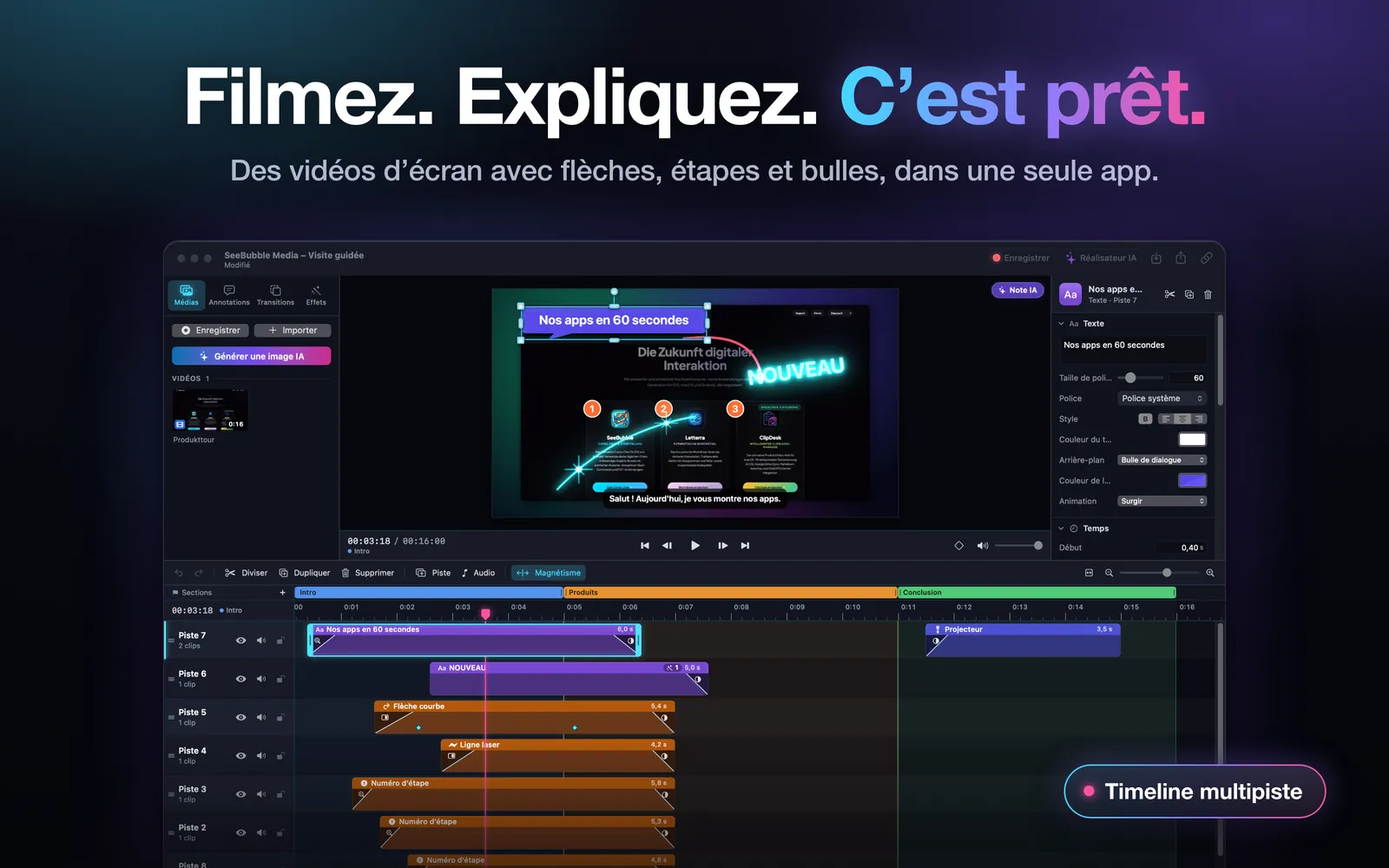
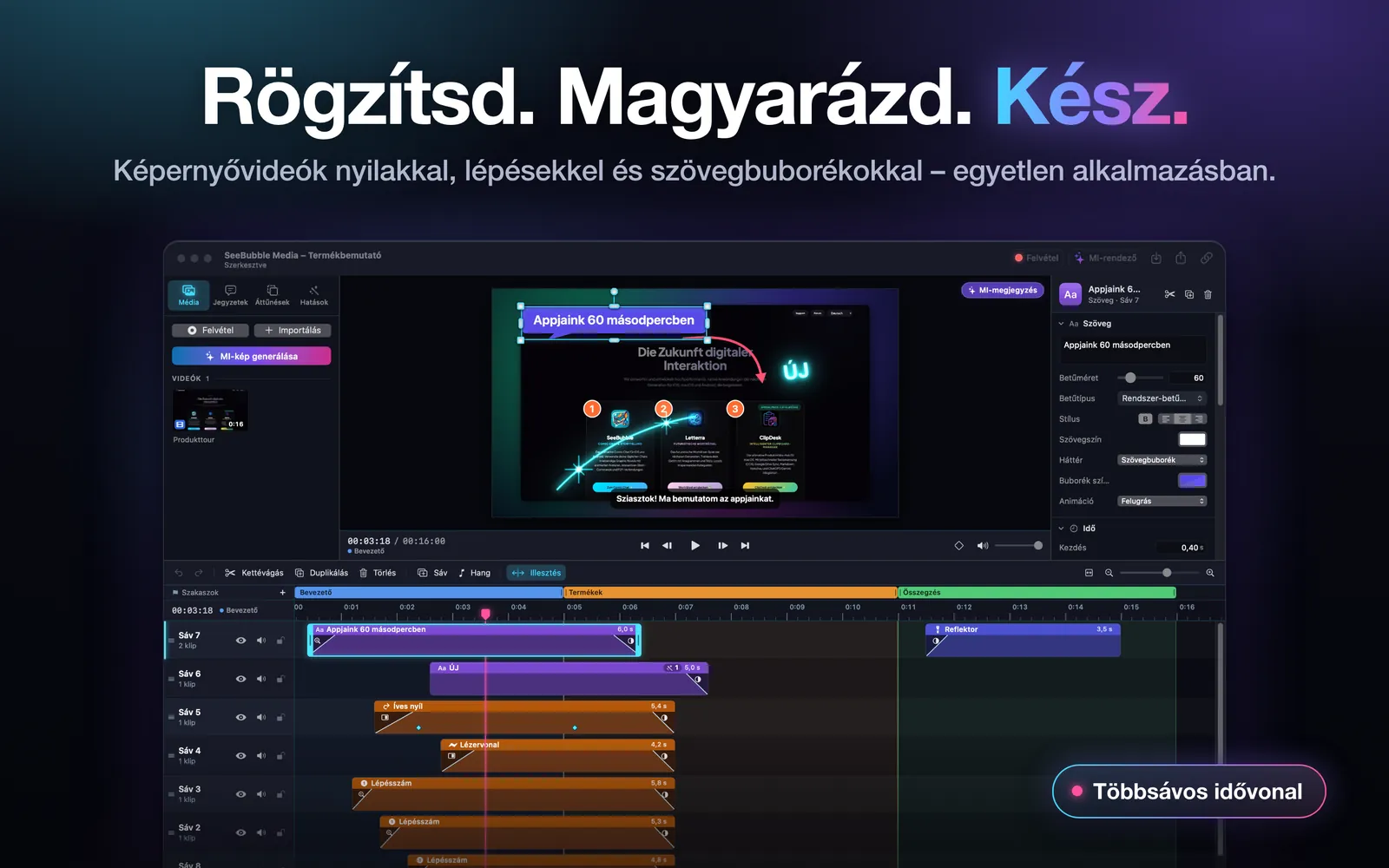
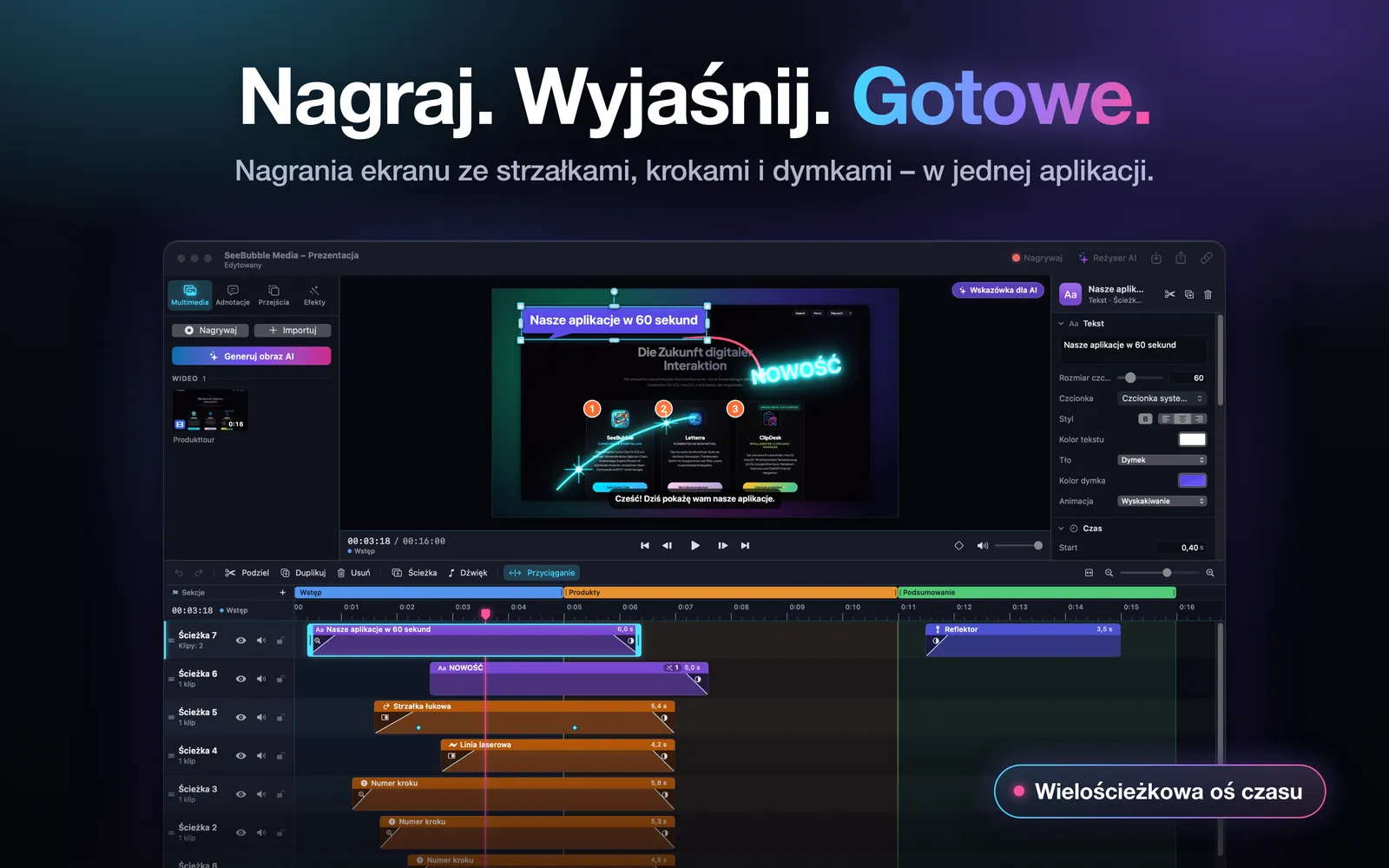
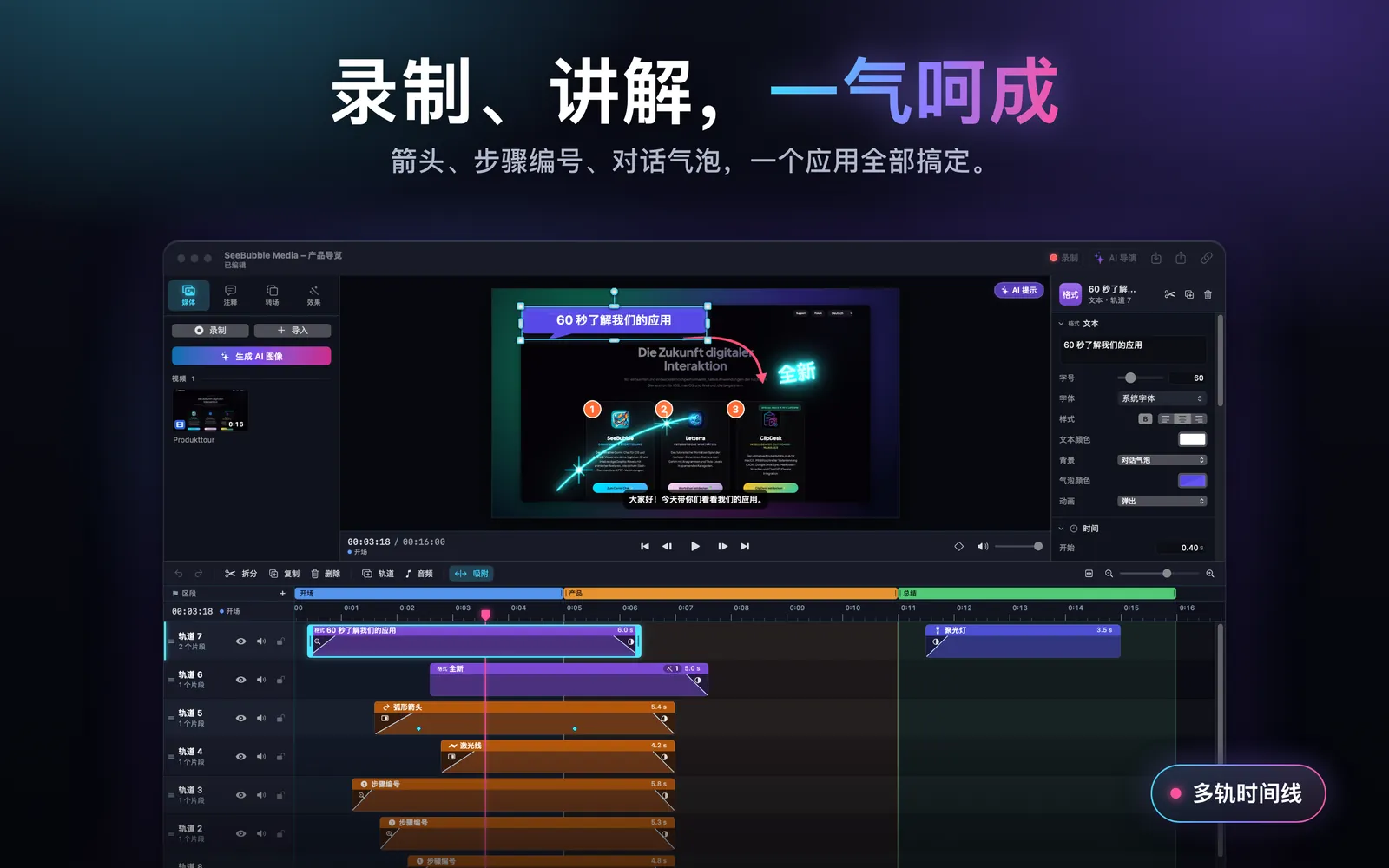
Multitrack timeline
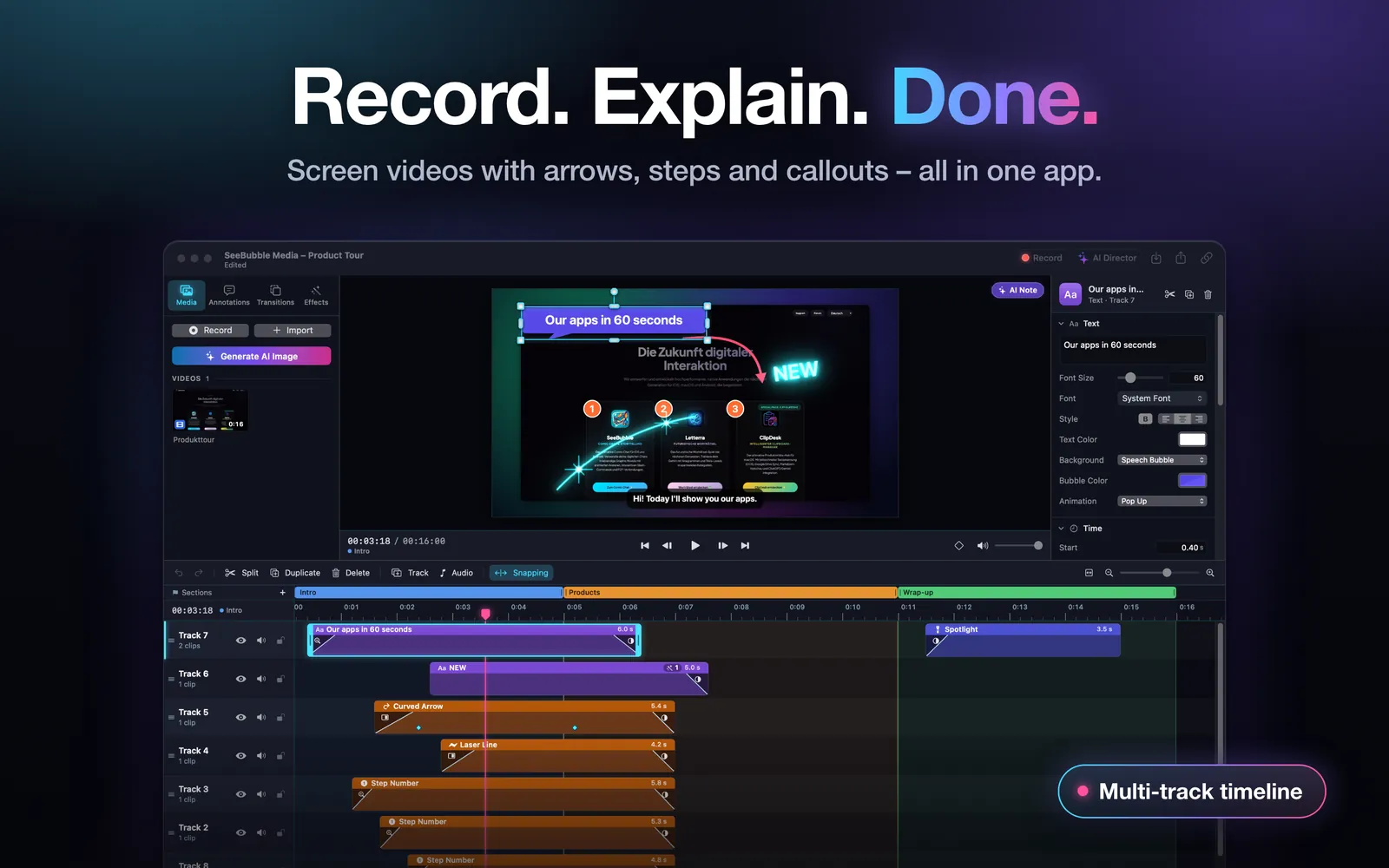
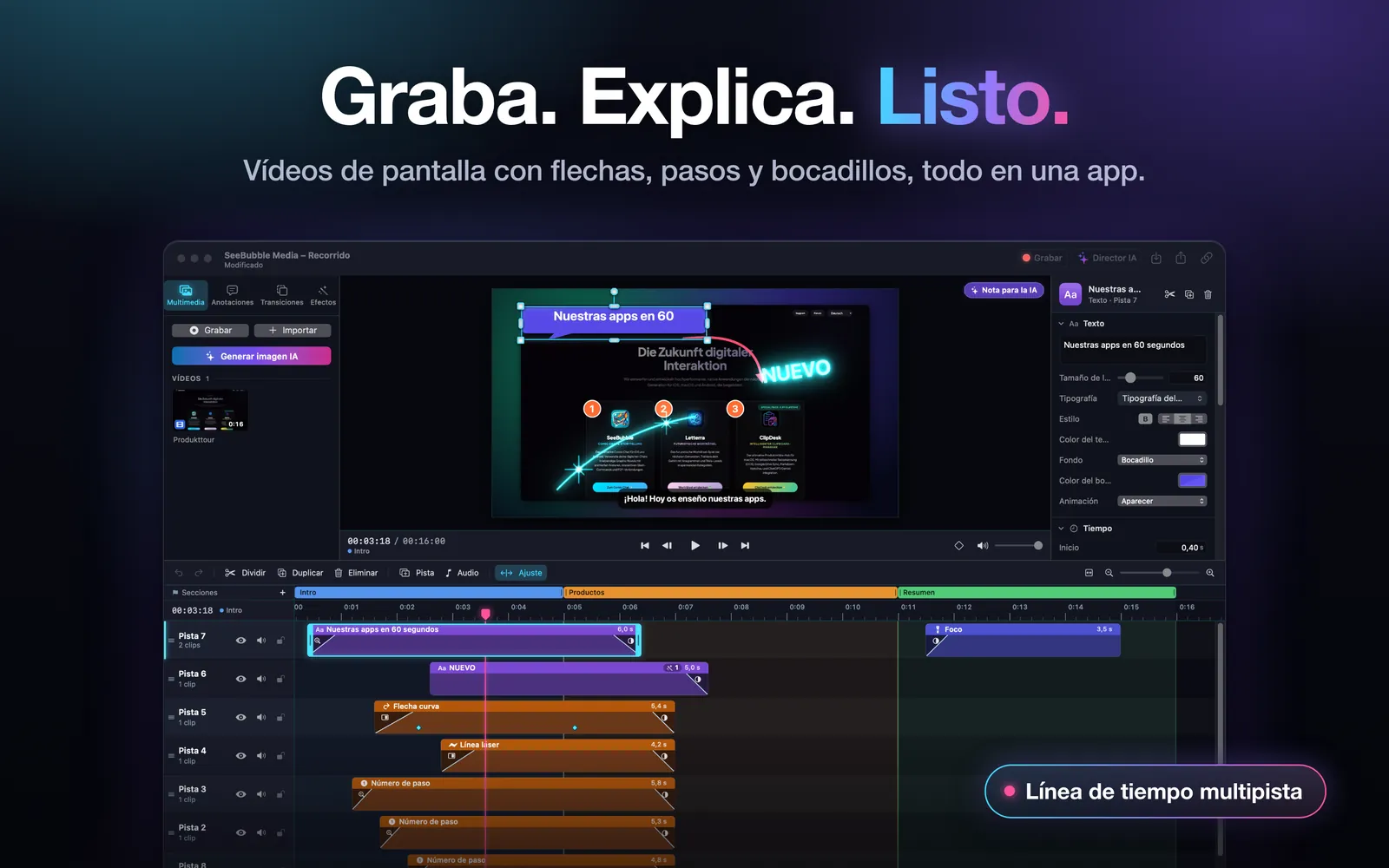
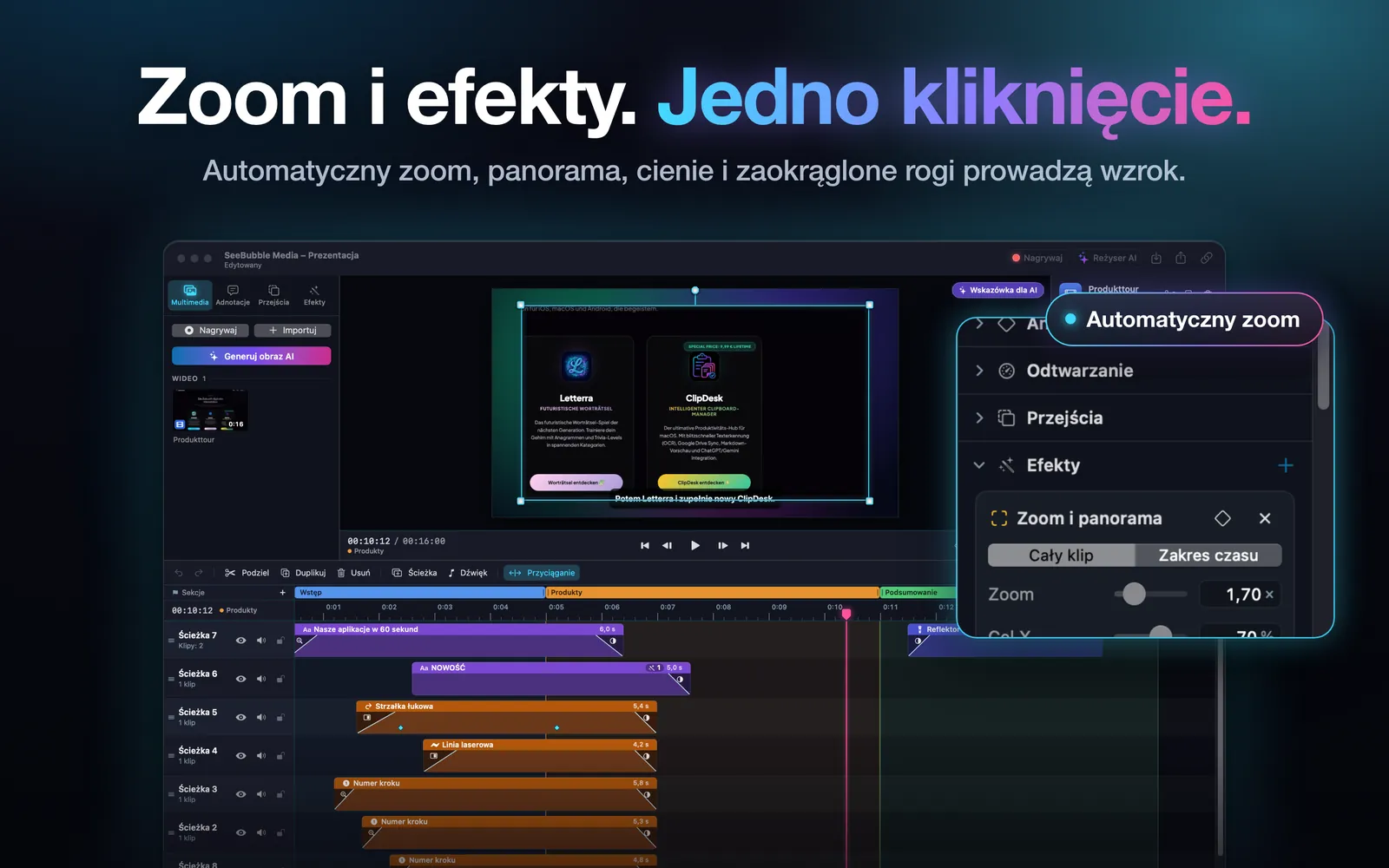
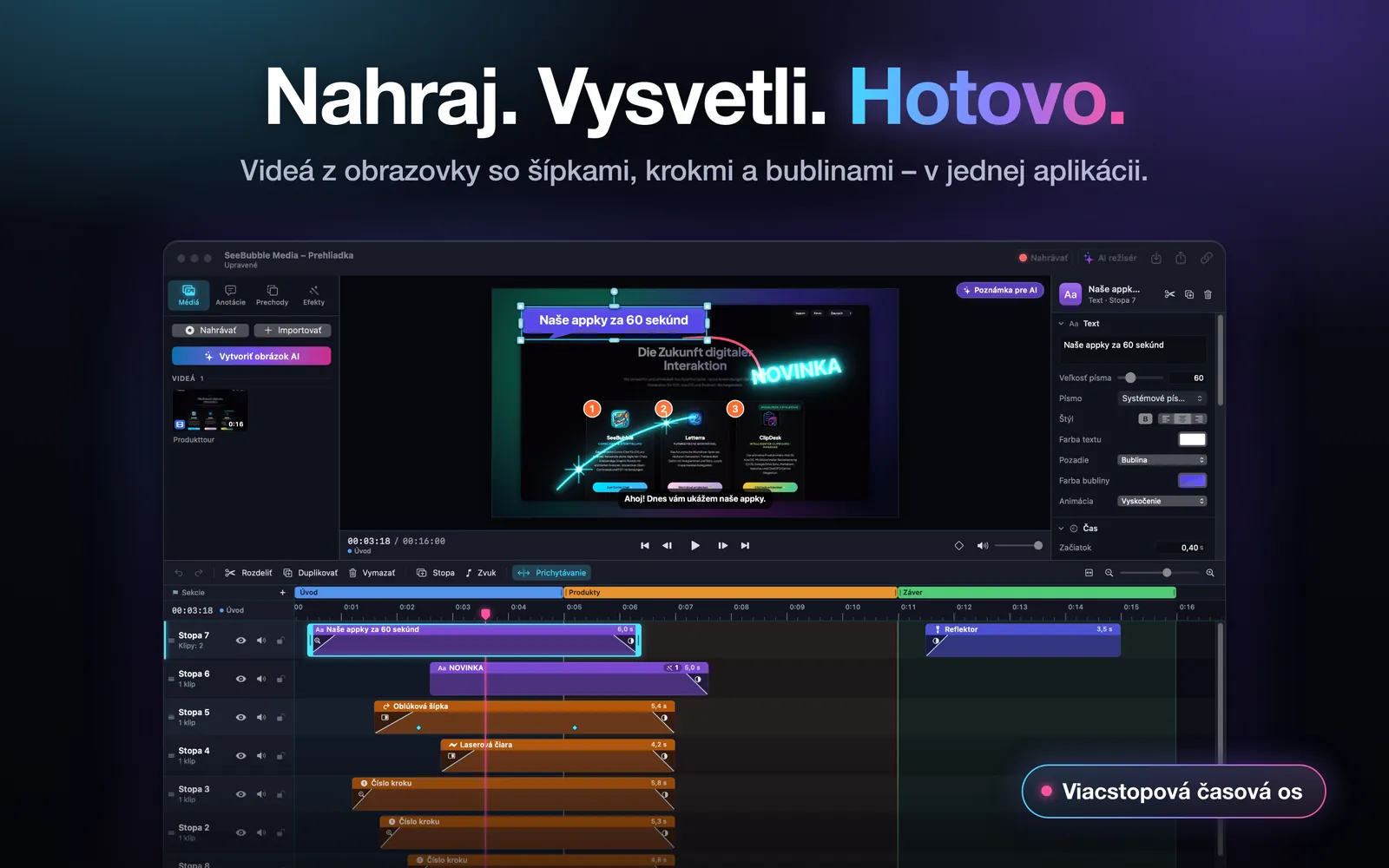
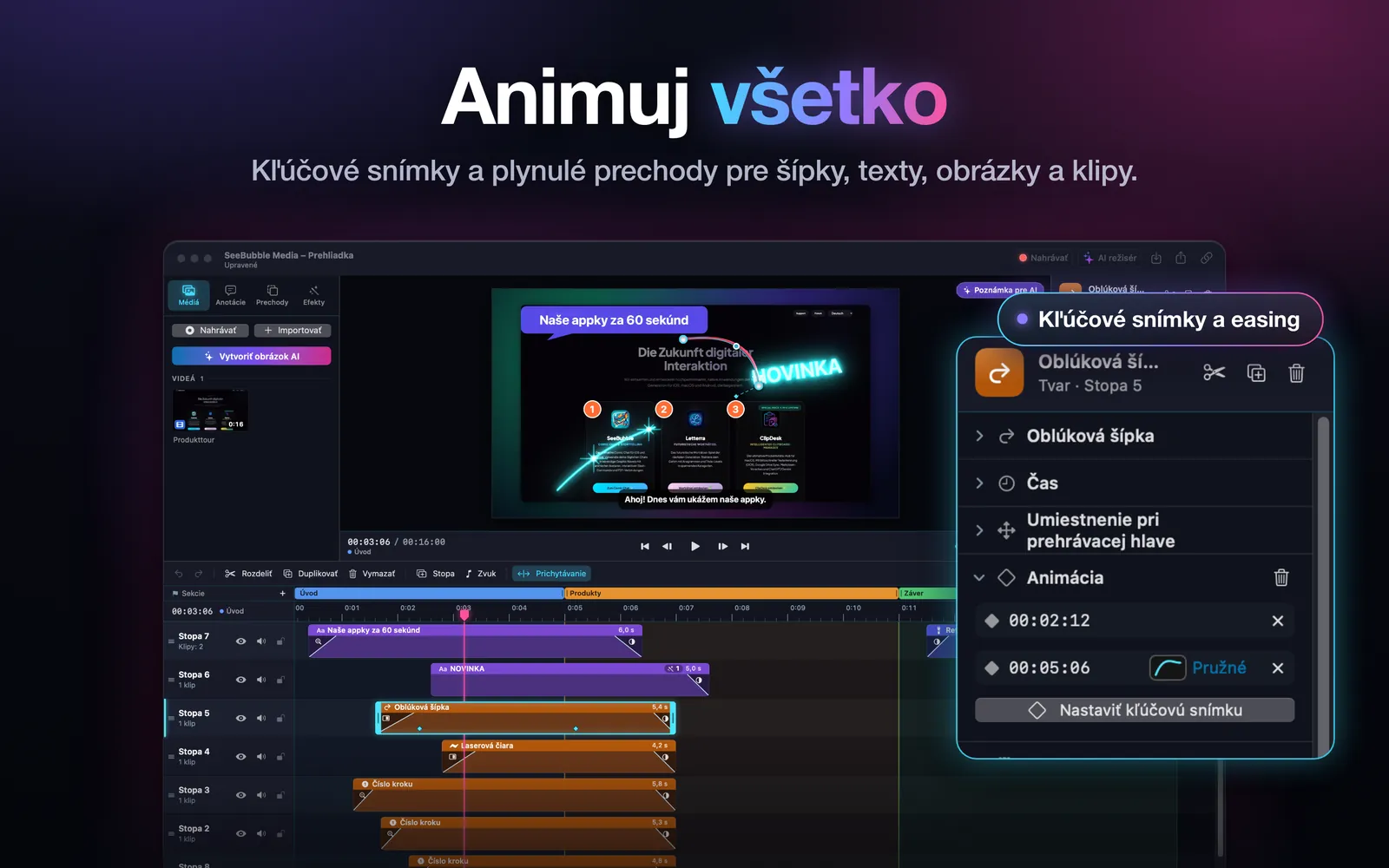
As many tracks as you like. Trim, split and move clips, line them up neatly with snapping and structure the video into sections and chapters.
Annotations
Arrows (curved ones, too), lines, laser with points of light, rectangles, ellipses, highlighter, step numbers, spotlight, speech bubbles and neon text. Blur and pixelate hide private areas.
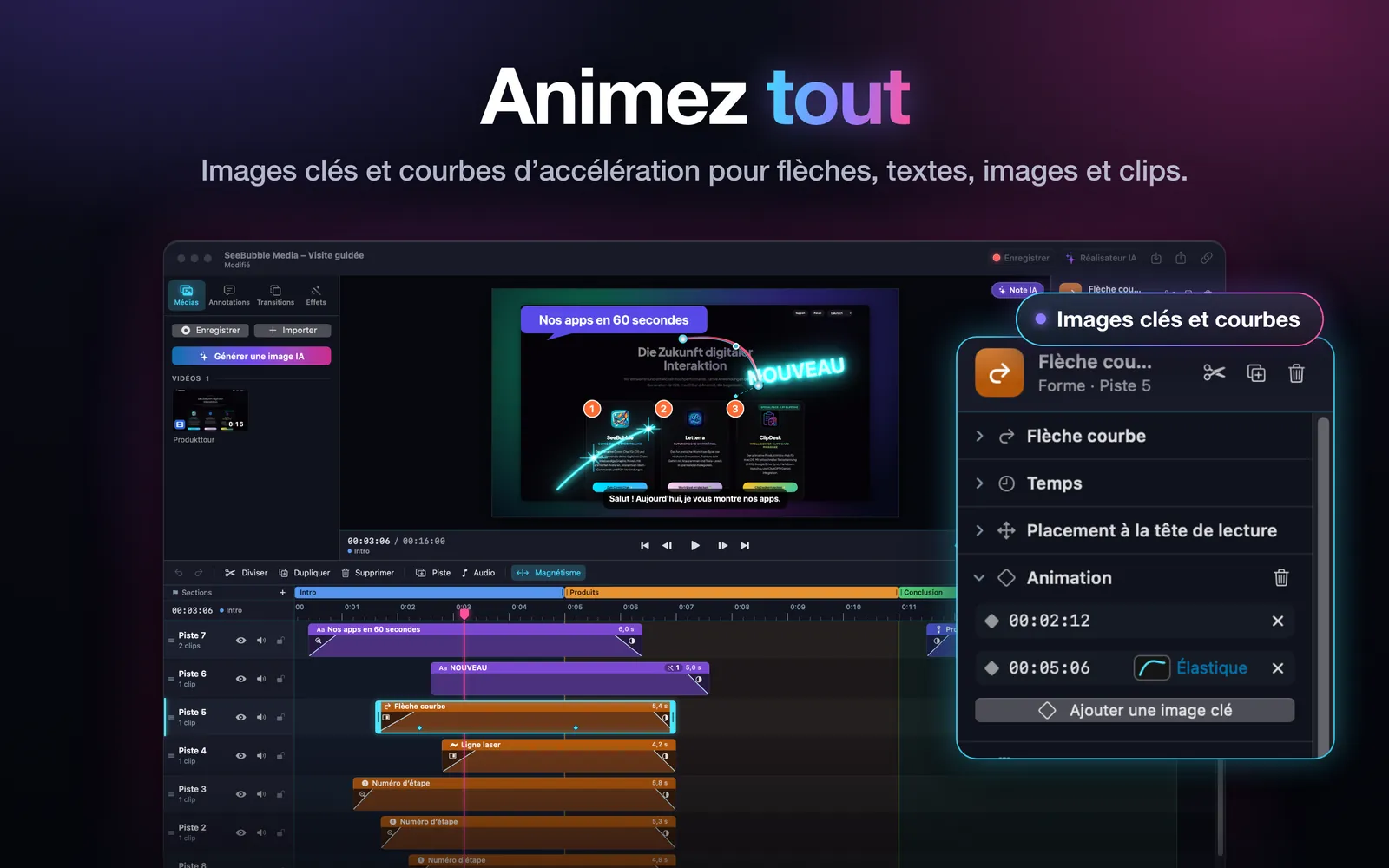
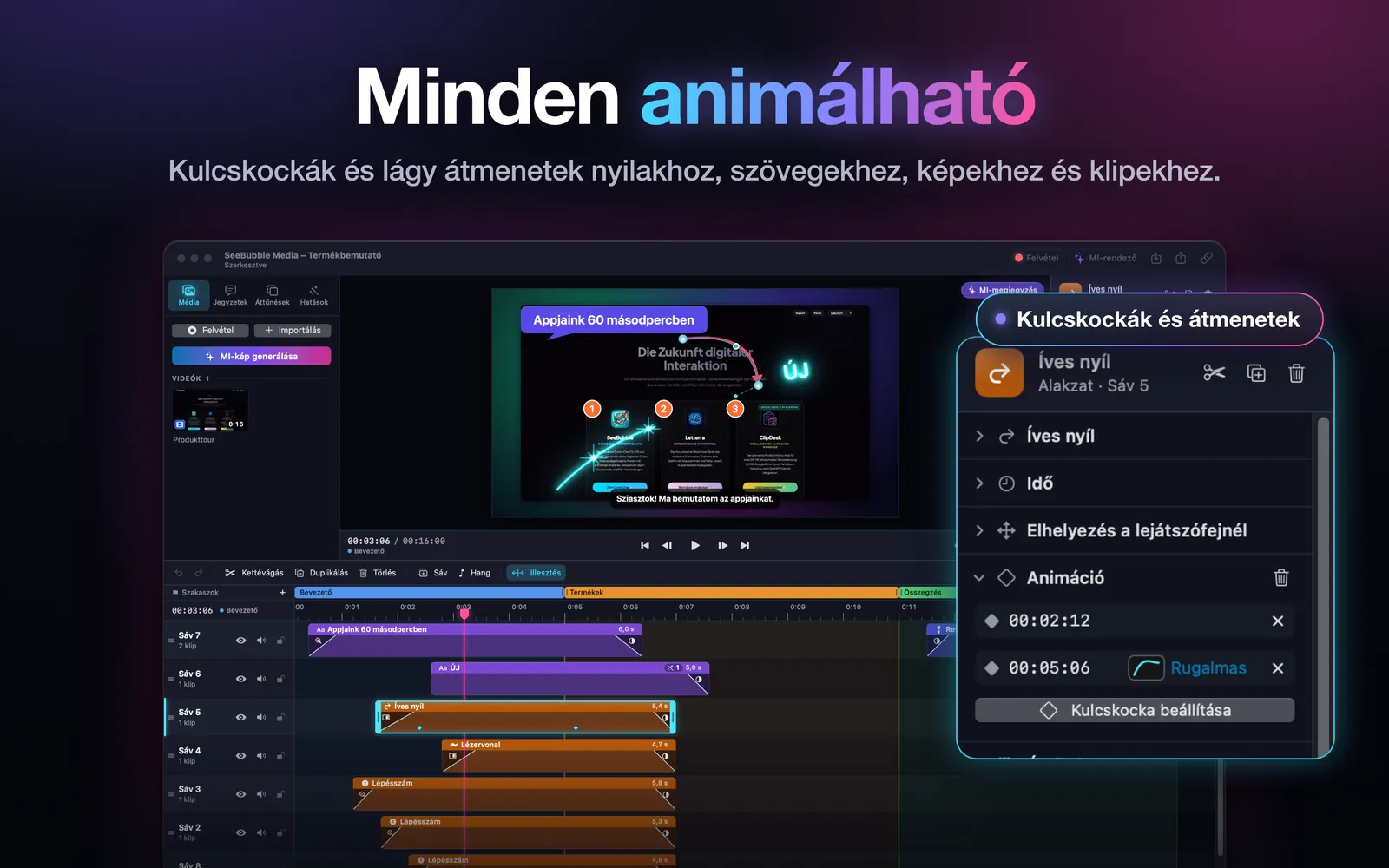
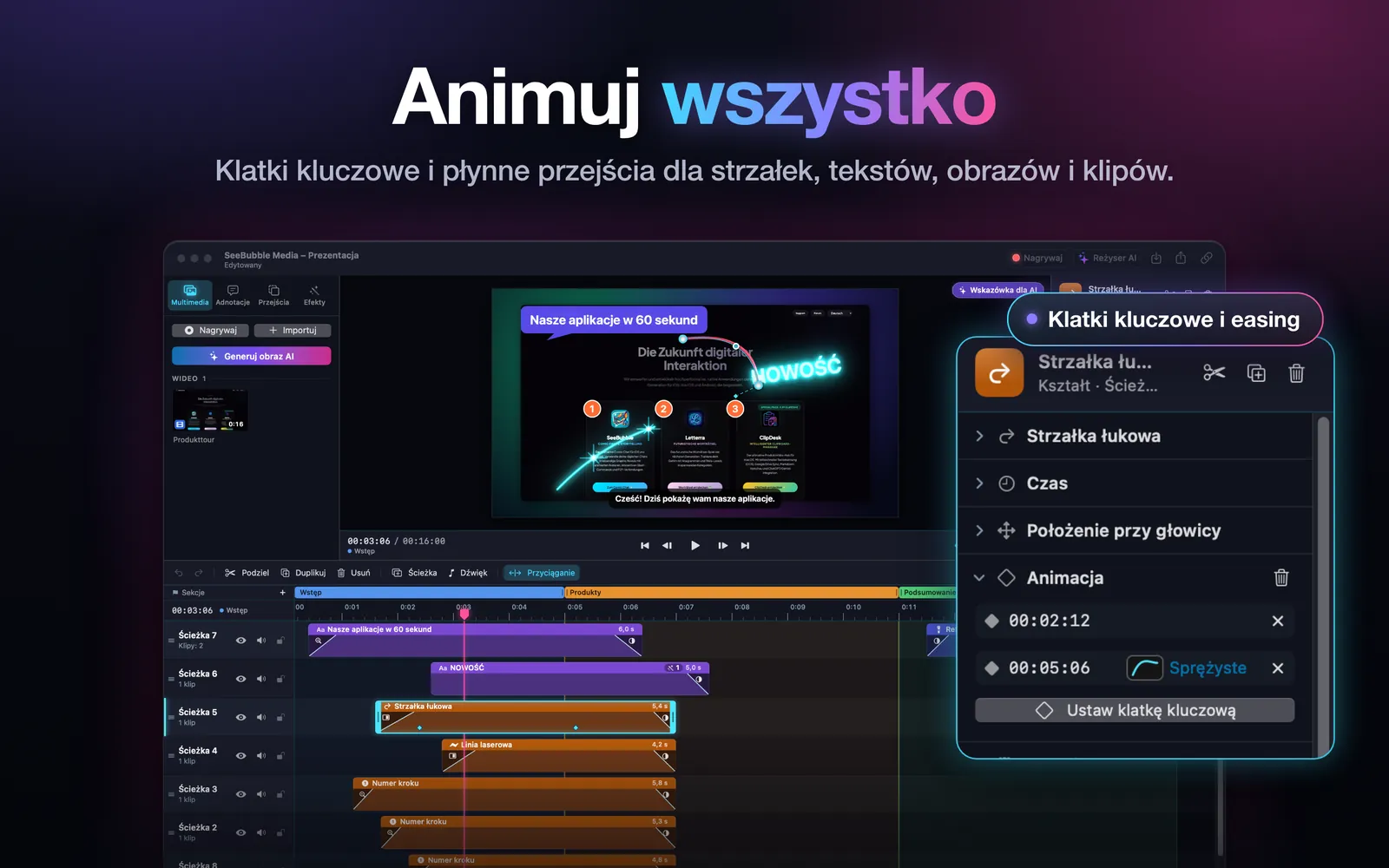
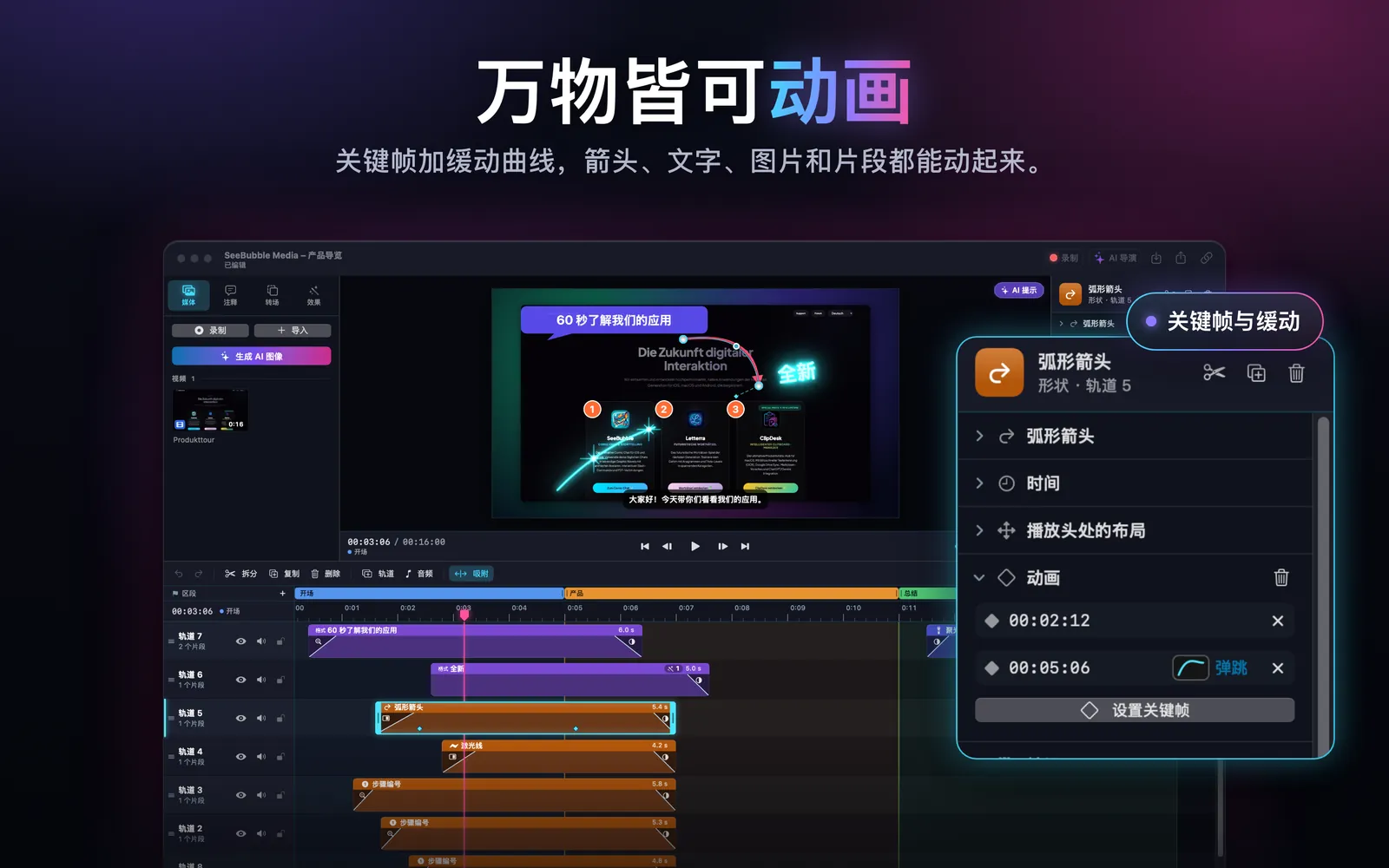
Animations and transitions
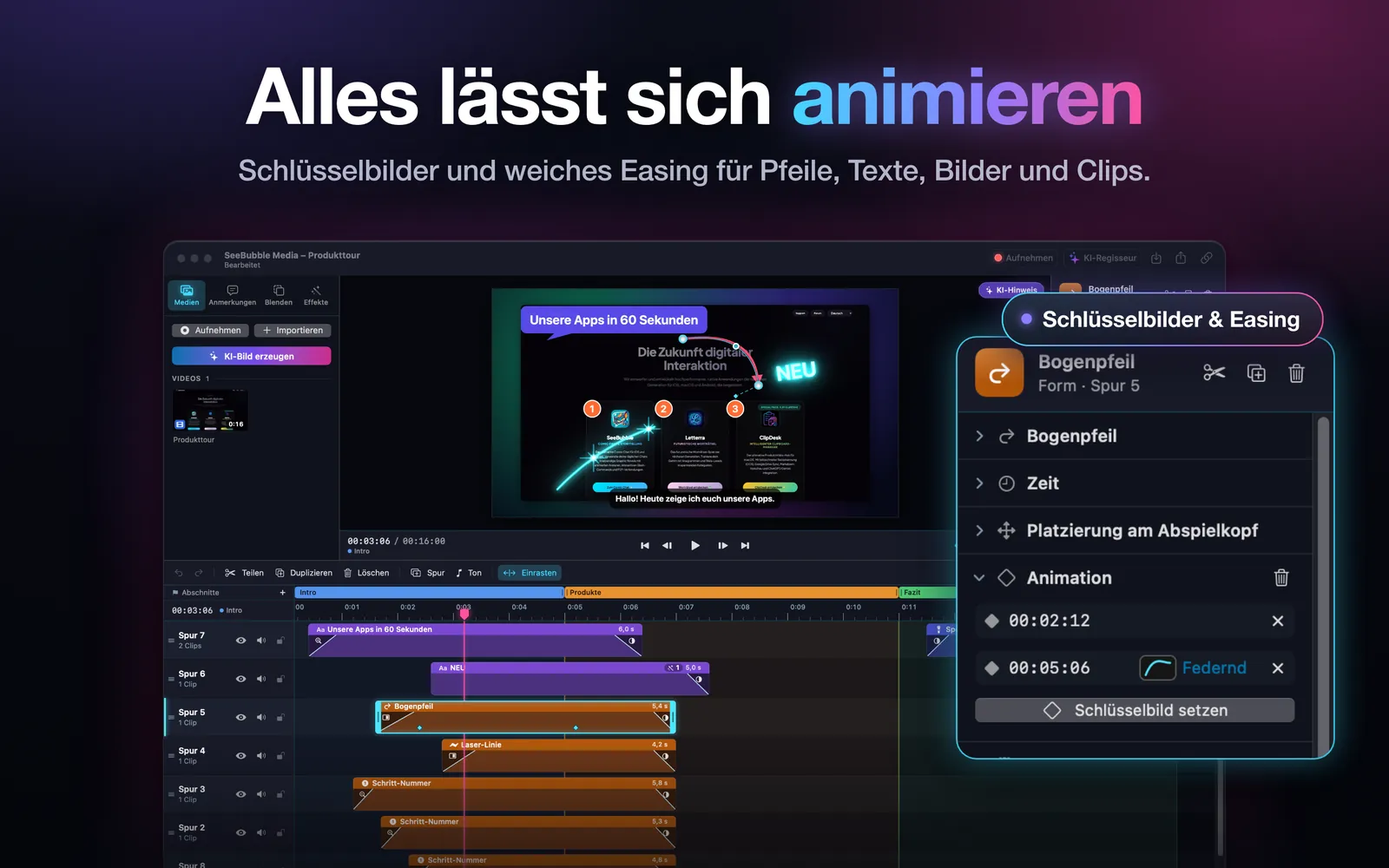
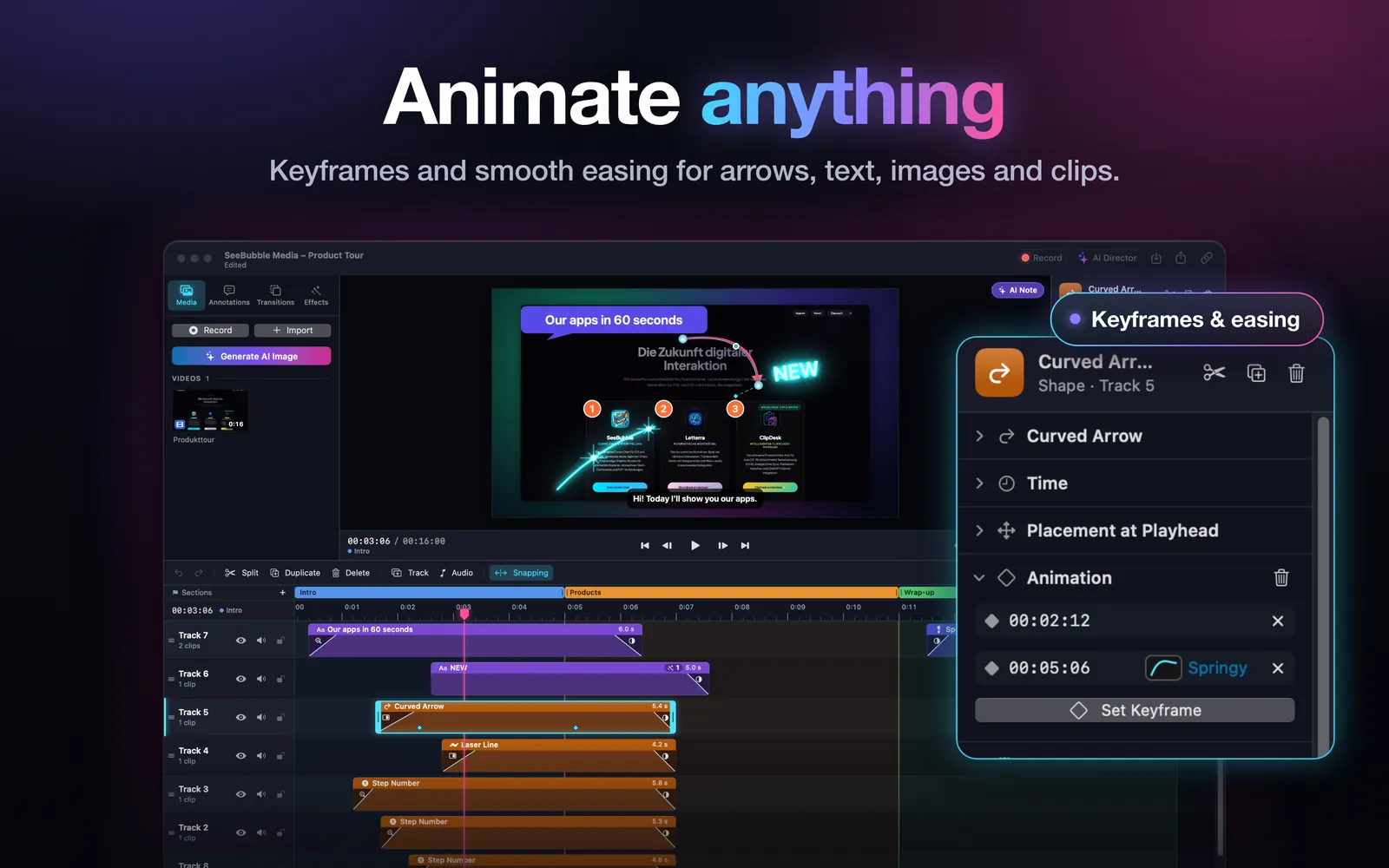
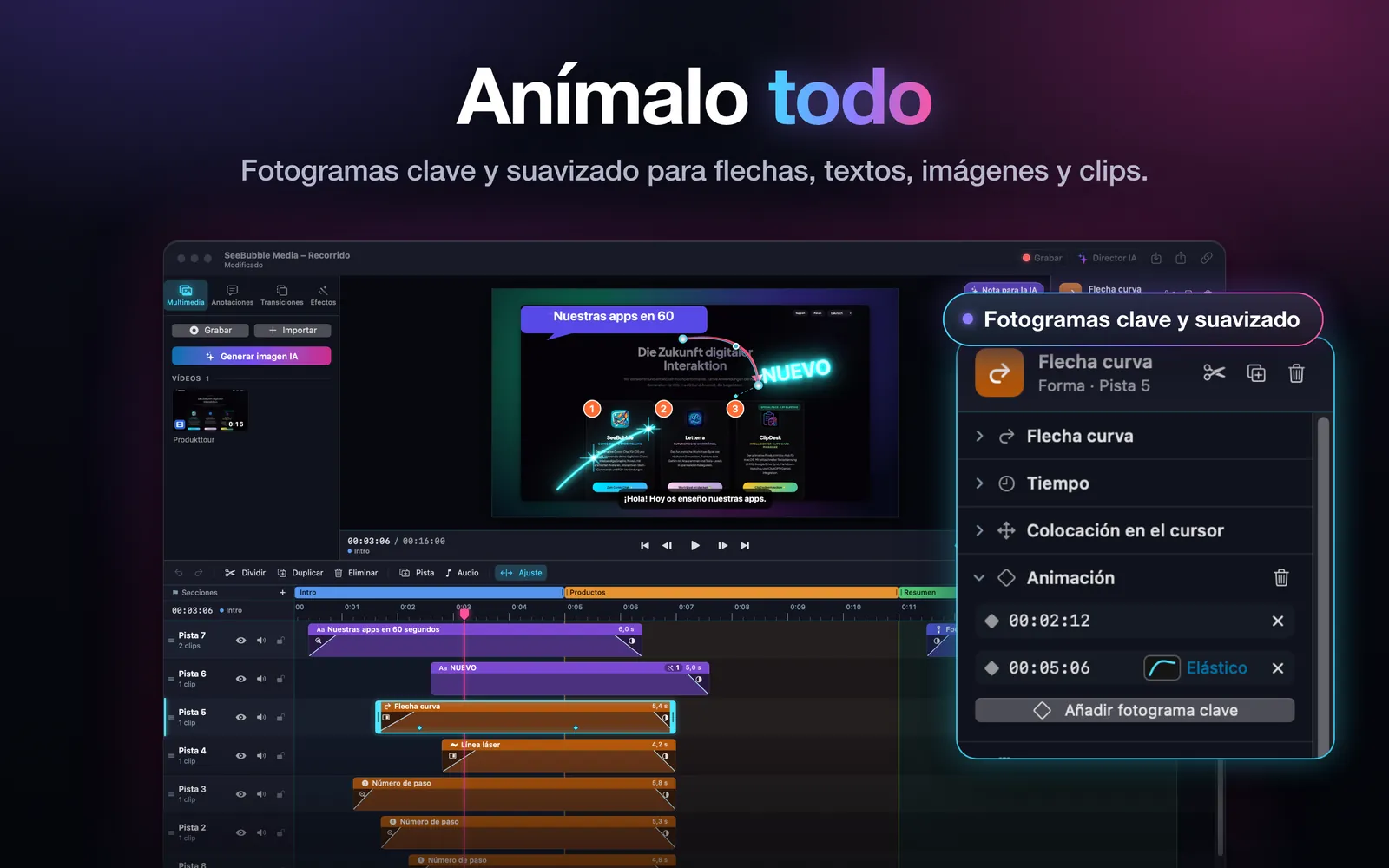
Animate with keyframes and easing such as steady, smooth or springy. For changes between clips there are transitions such as fade, slide, zoom, wipe, iris and spin.
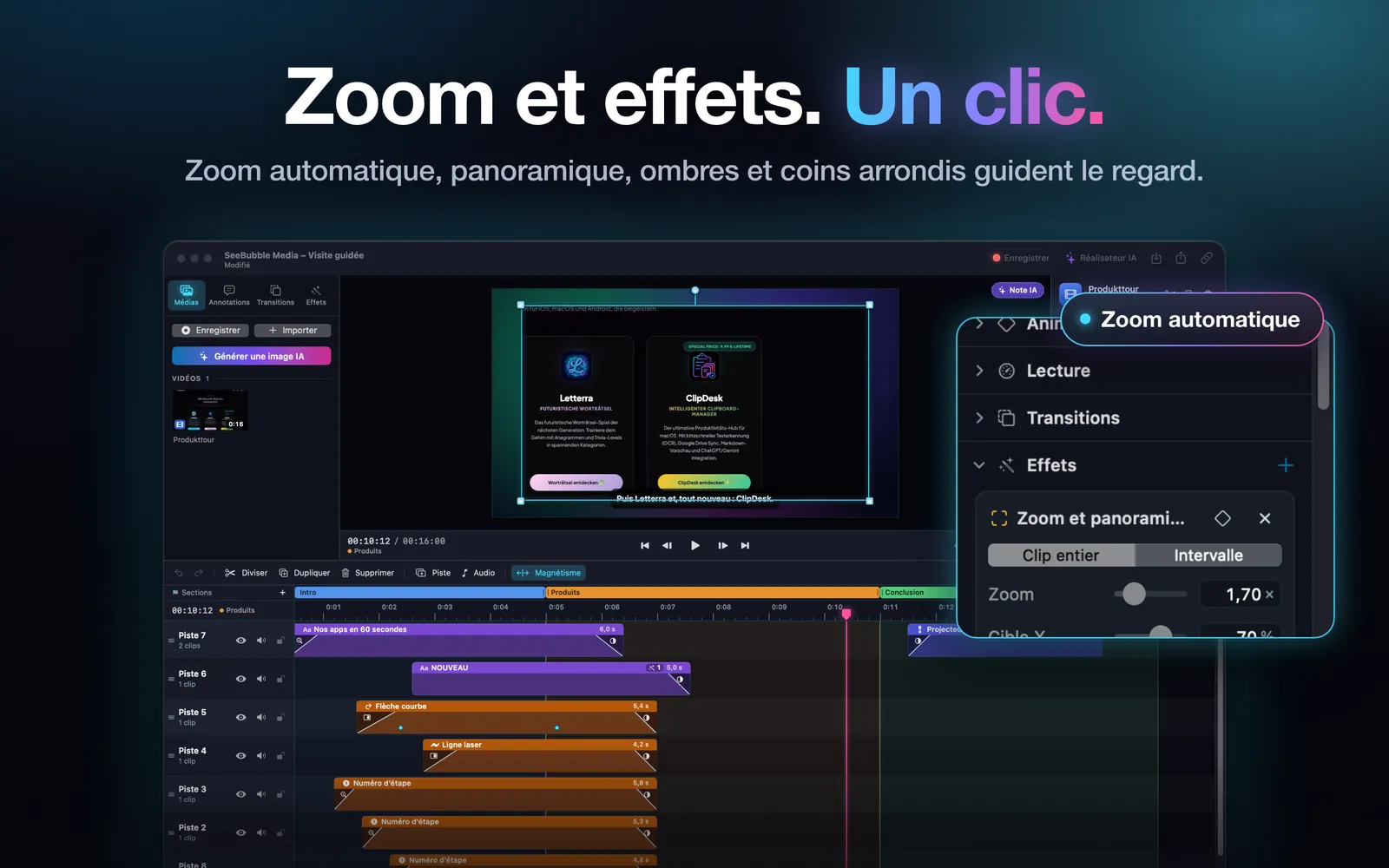
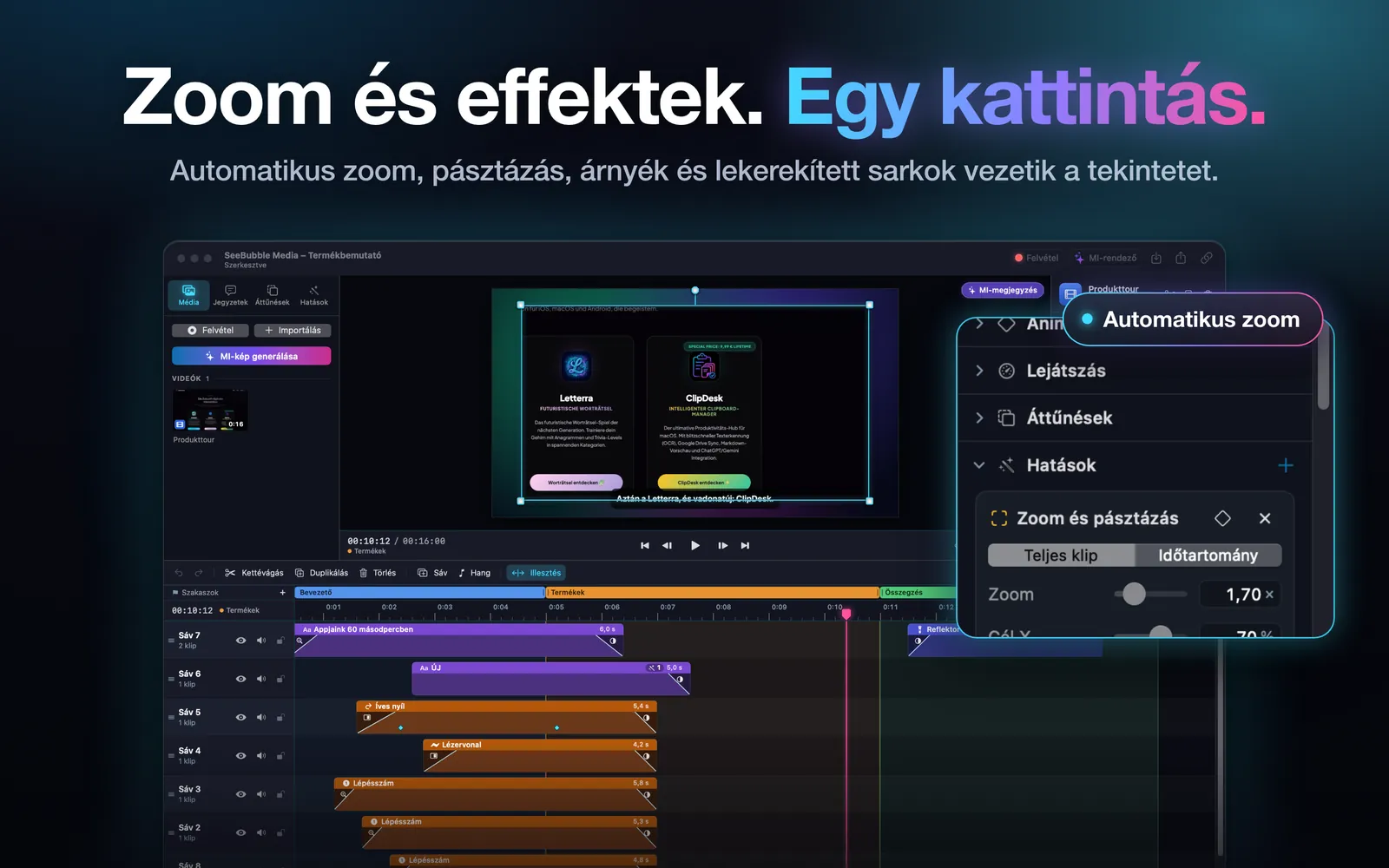
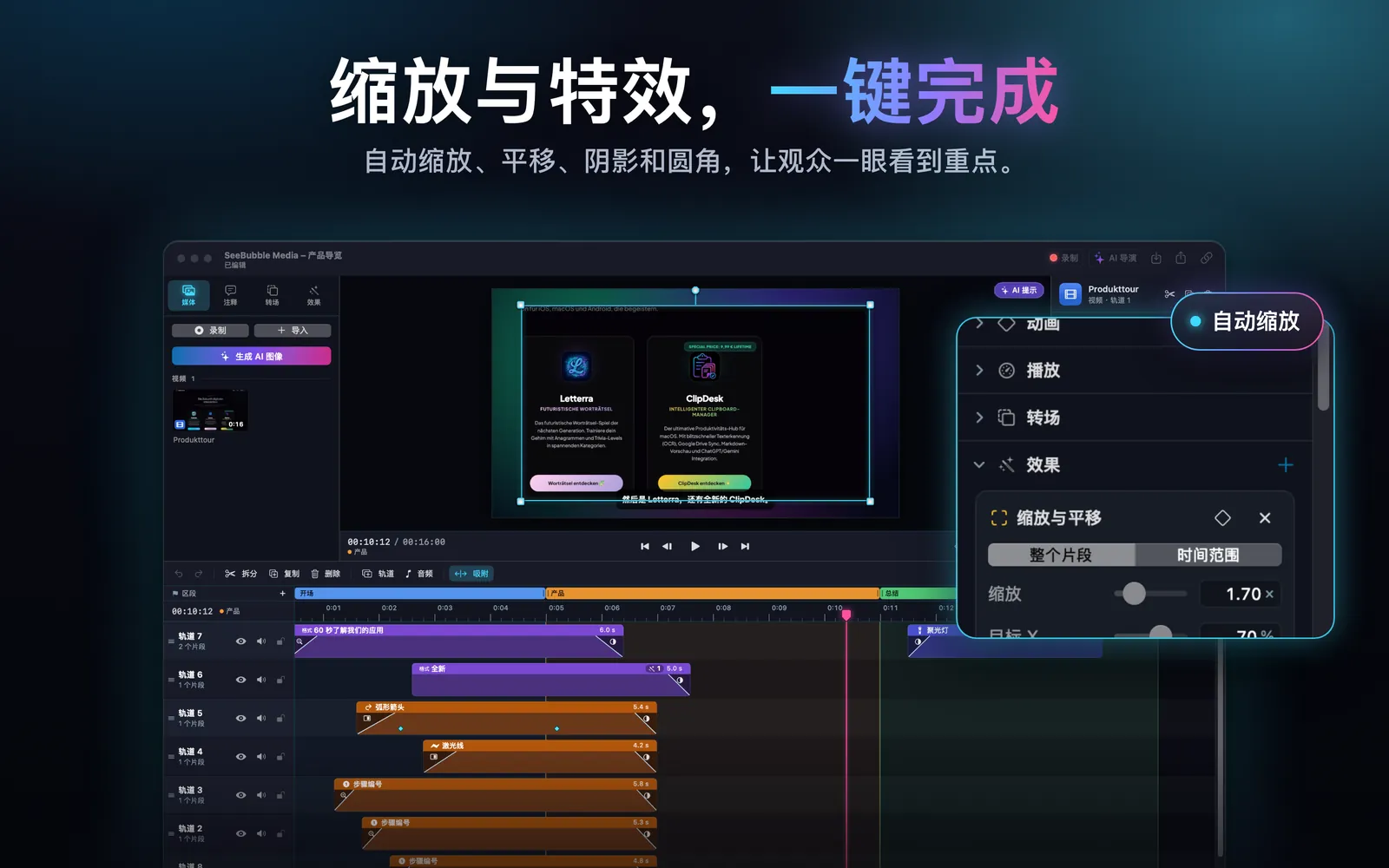
Effects
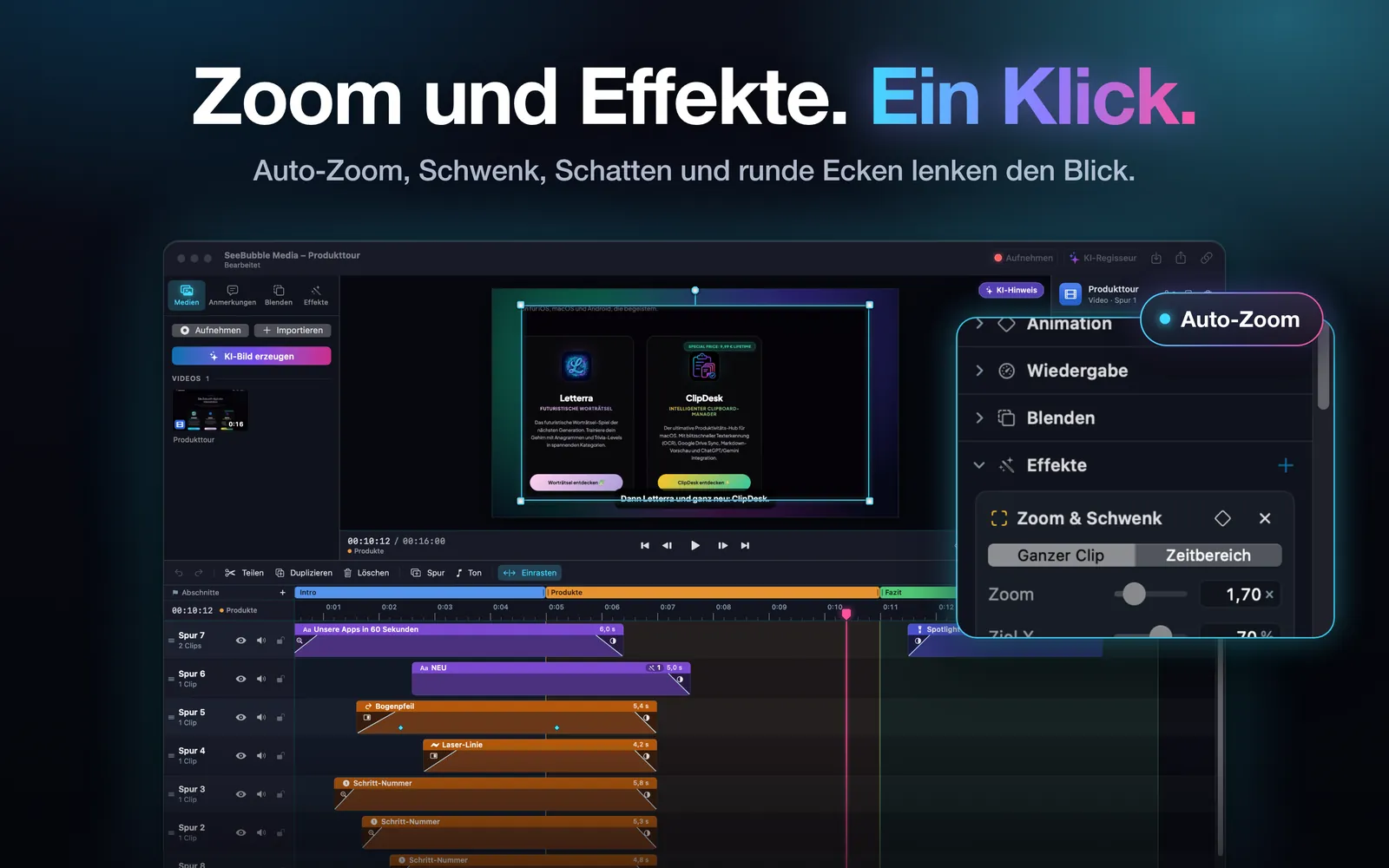
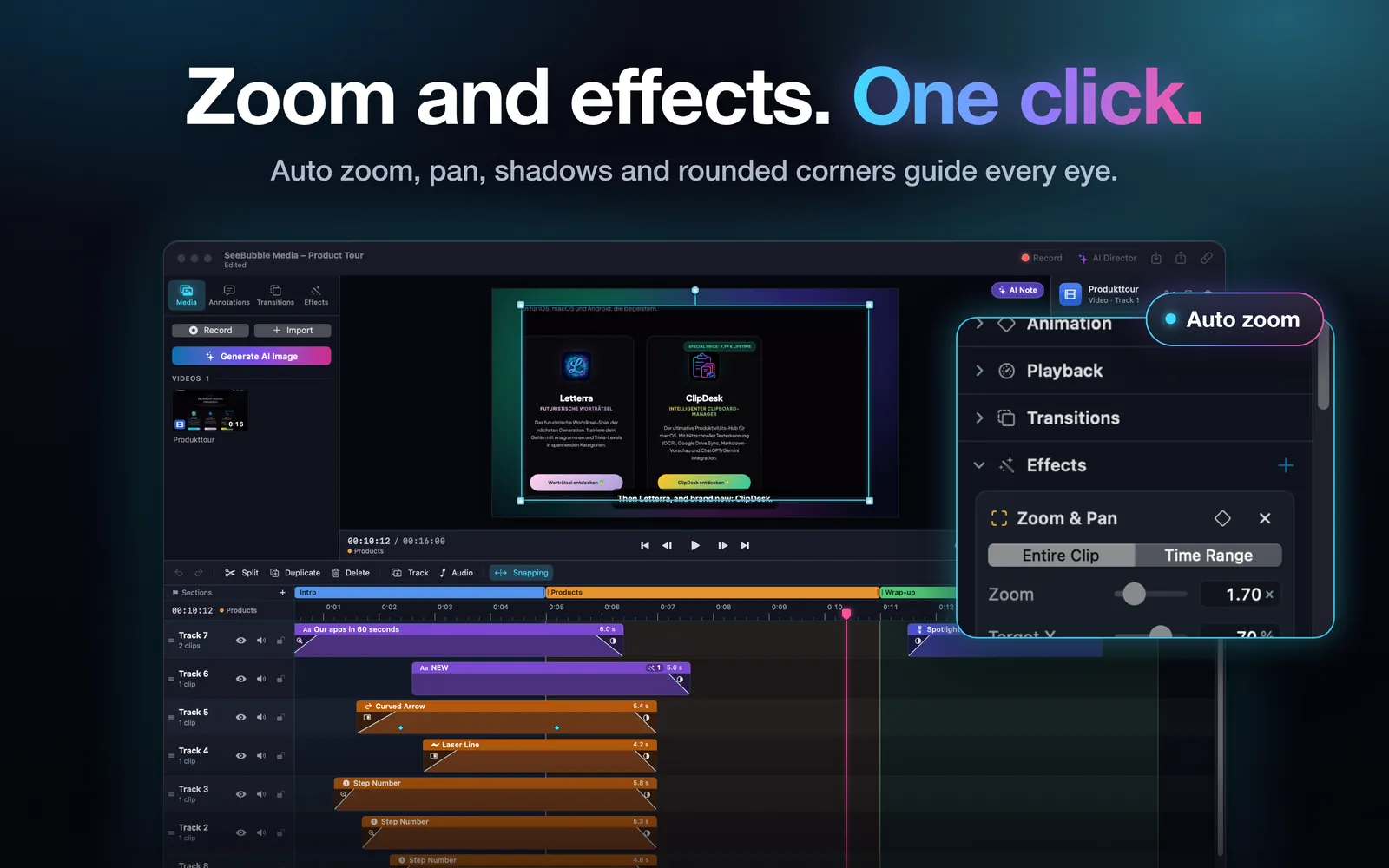
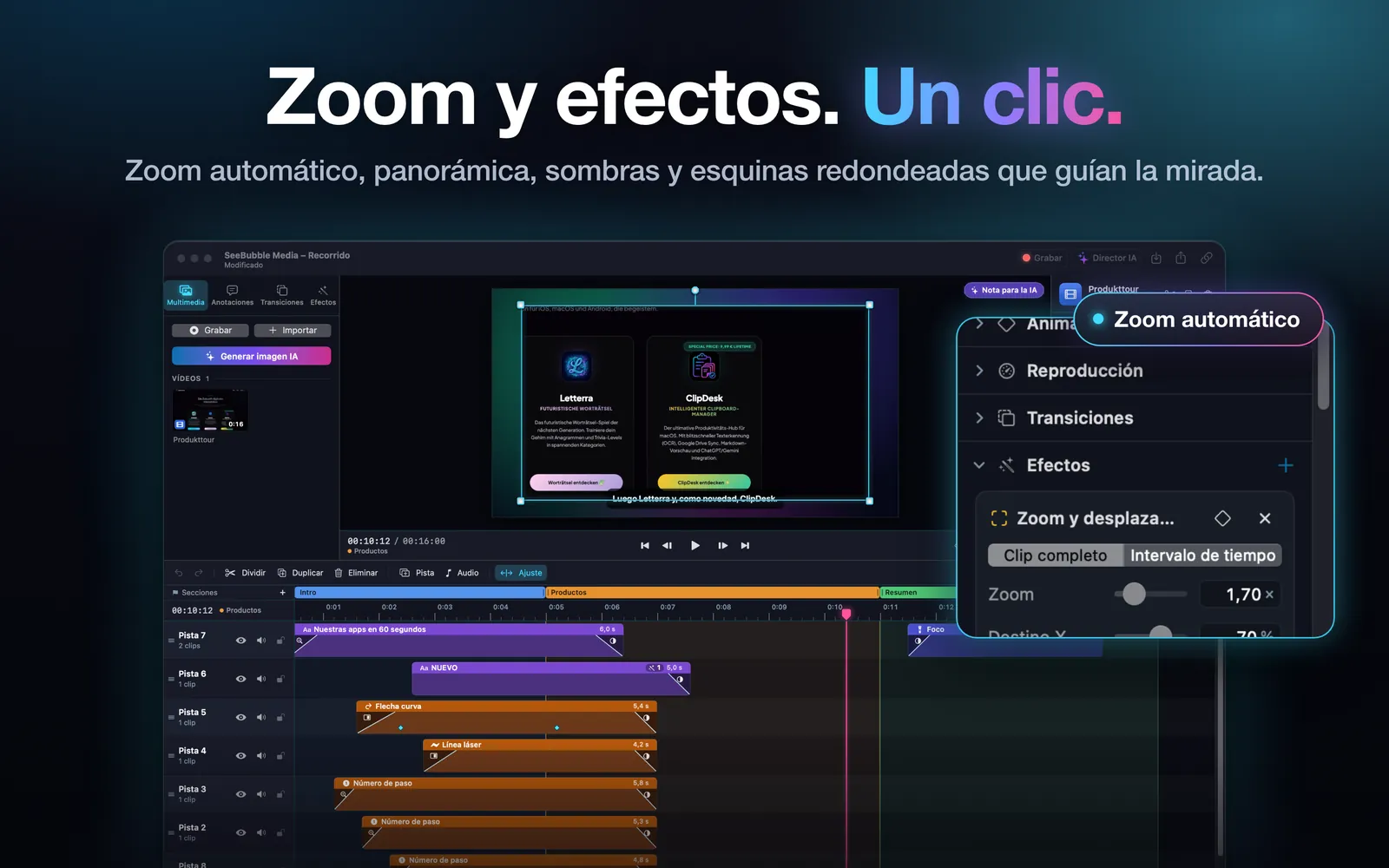
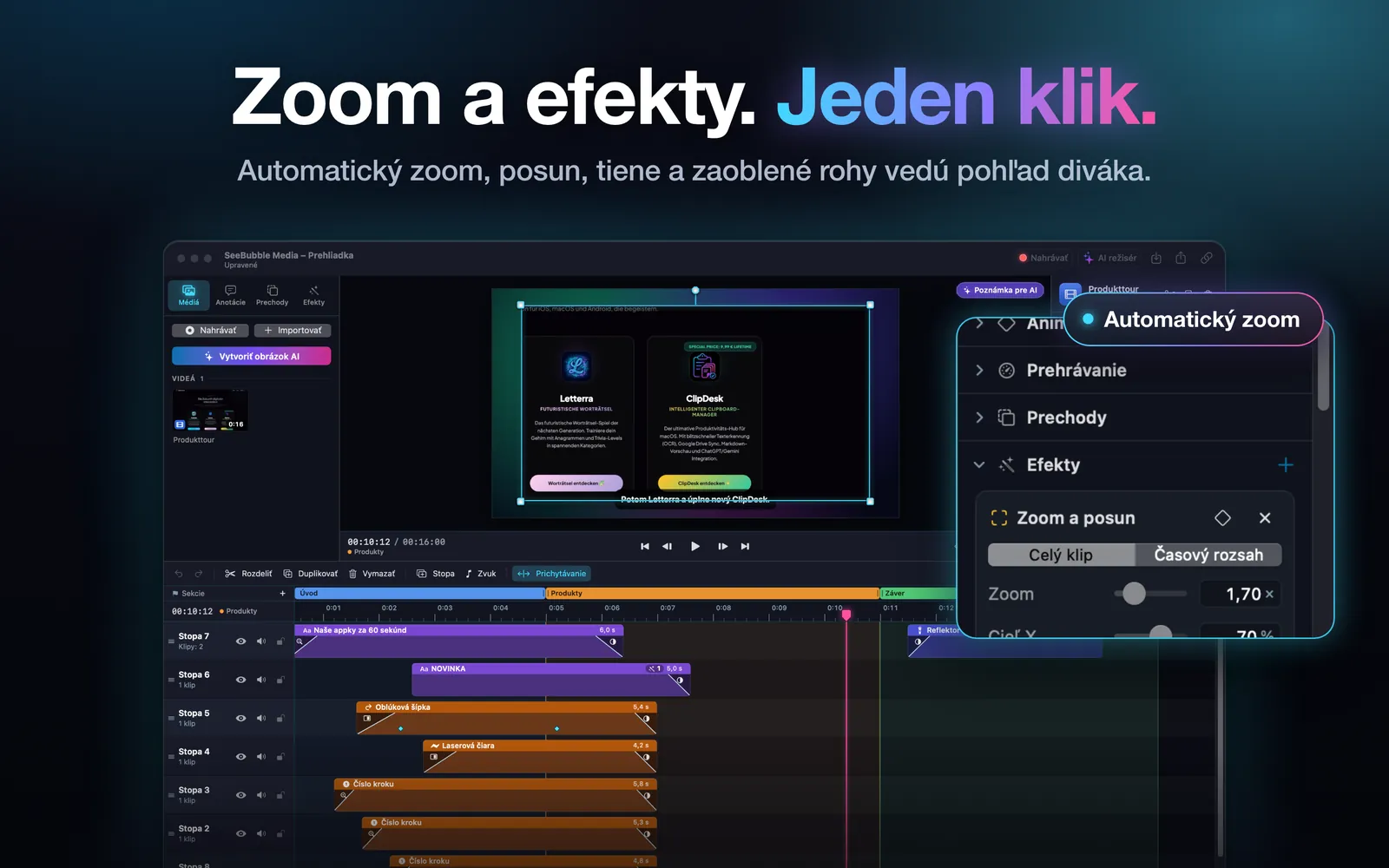
Zoom & pan, auto zoom that follows the mouse, pointer highlight, click rings, shadows, rounded corners, backgrounds, color correction, background removal and more.
Subtitles
TrackCast creates subtitles from what you say, using speech recognition.
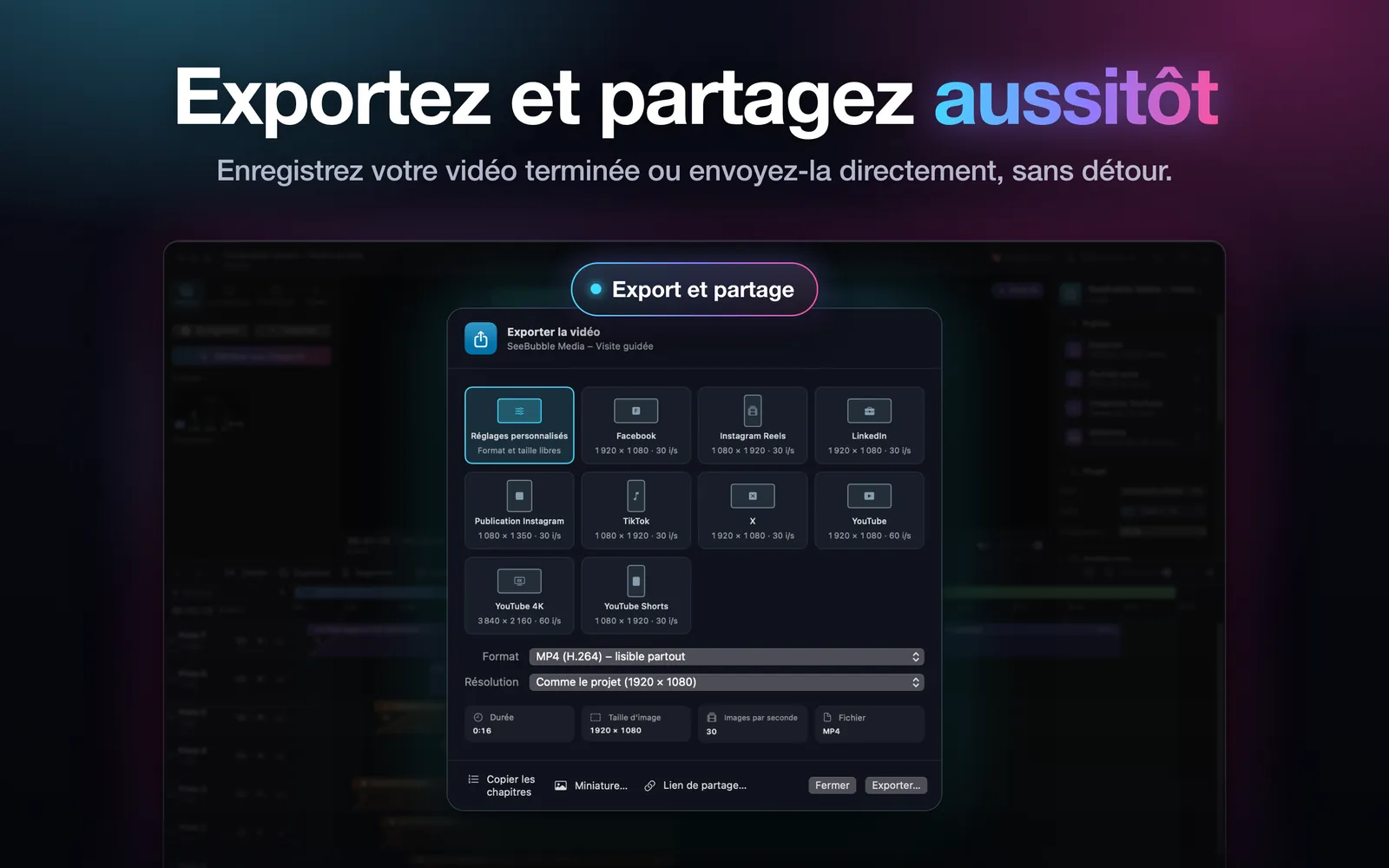
Export
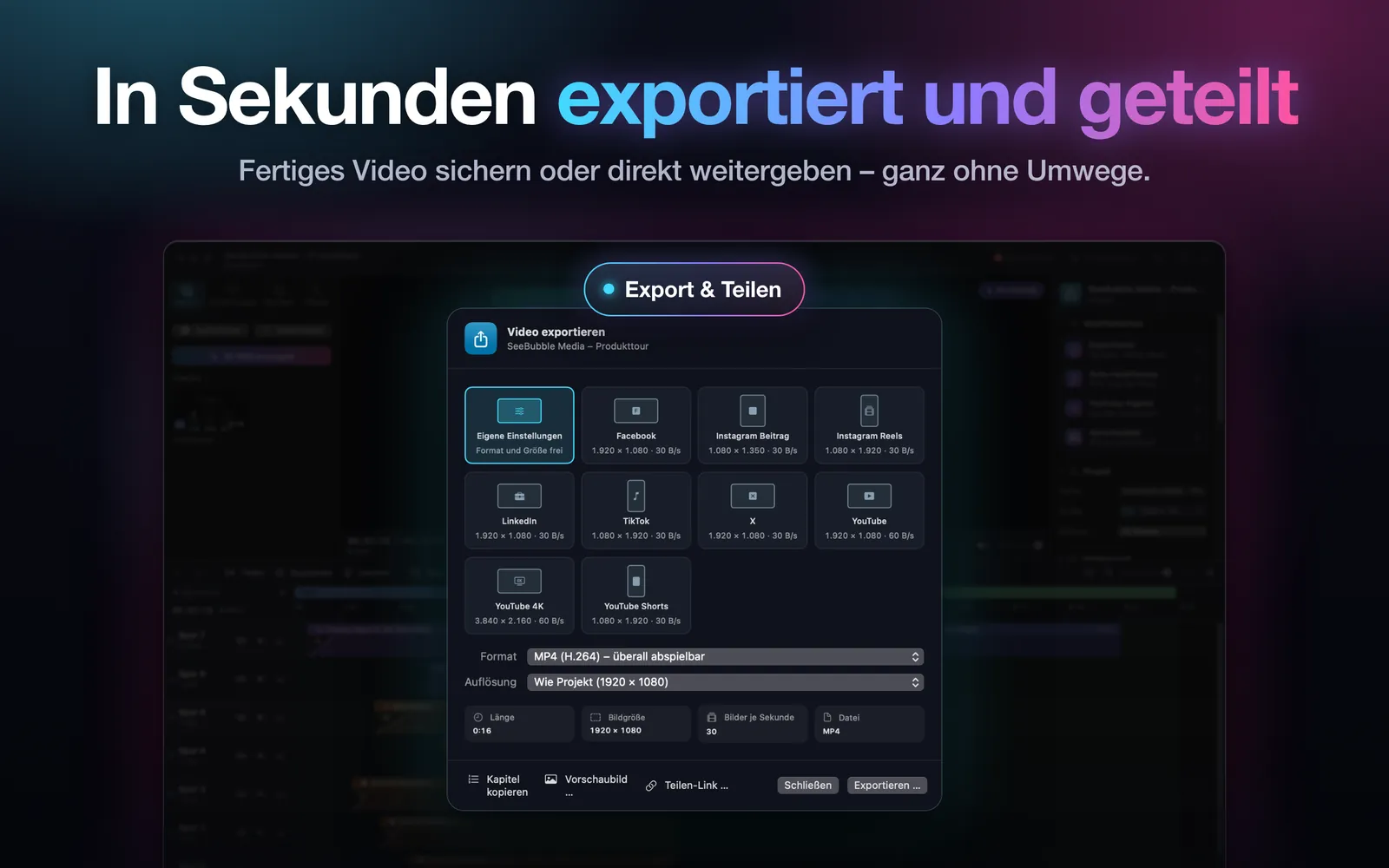
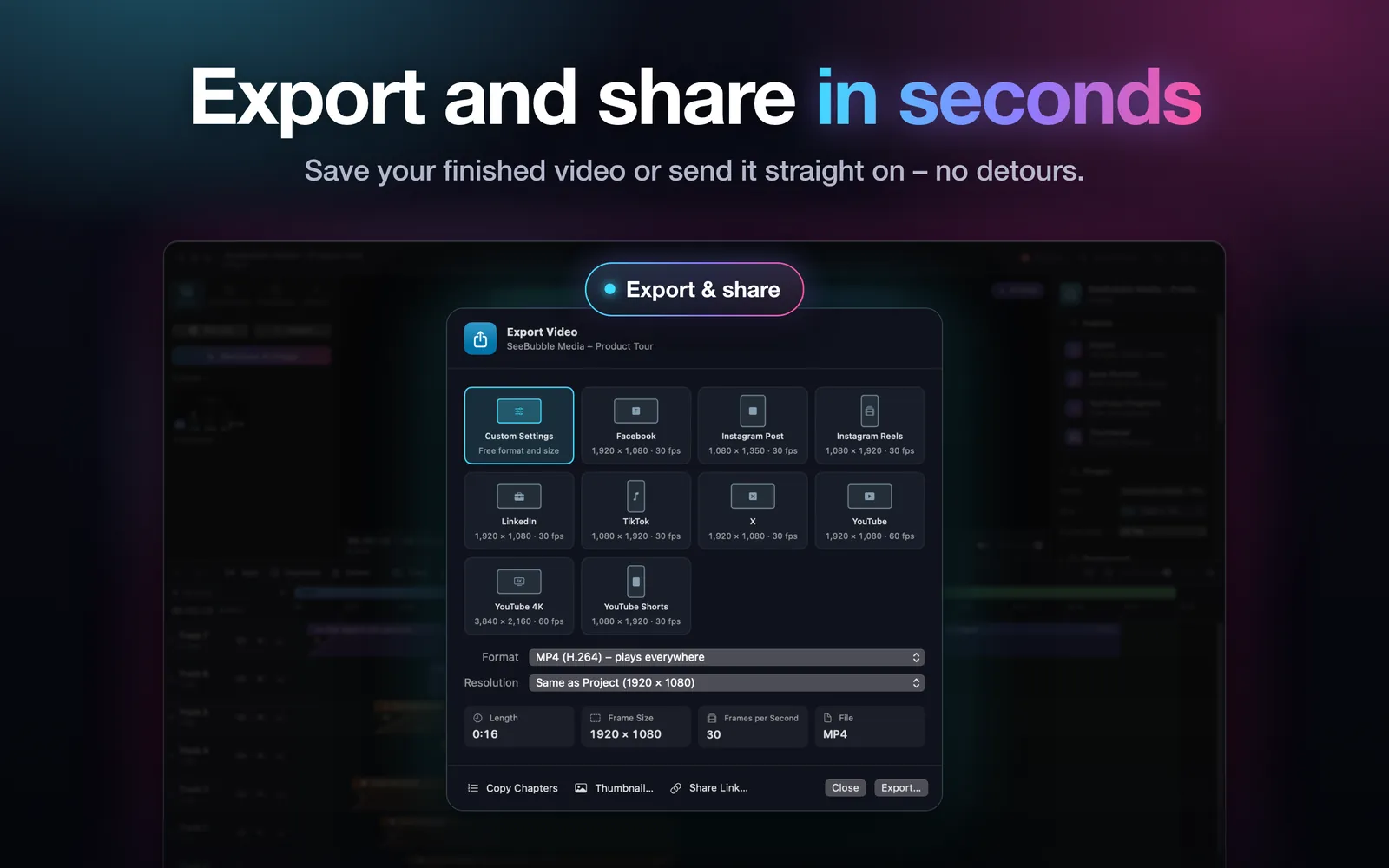
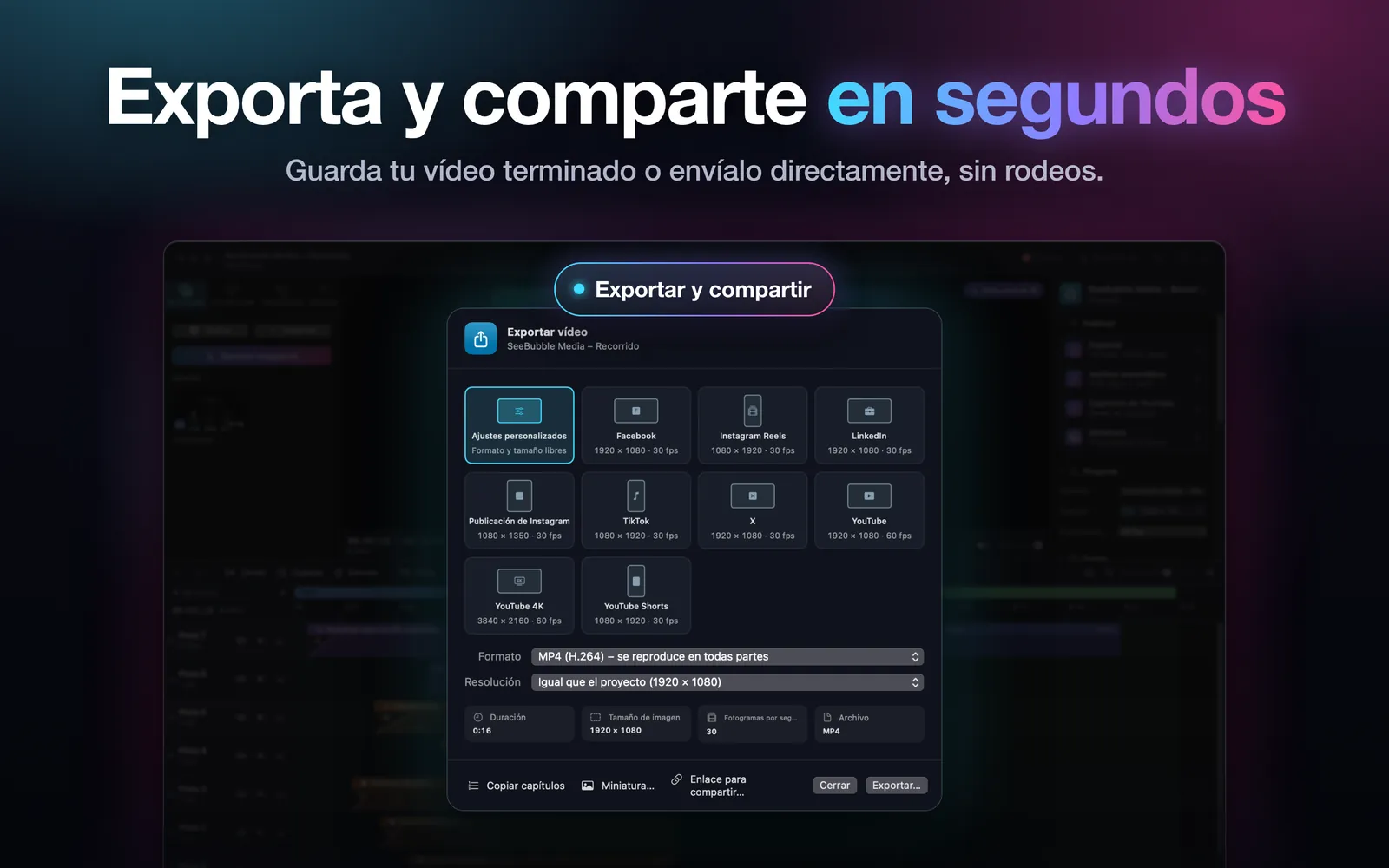
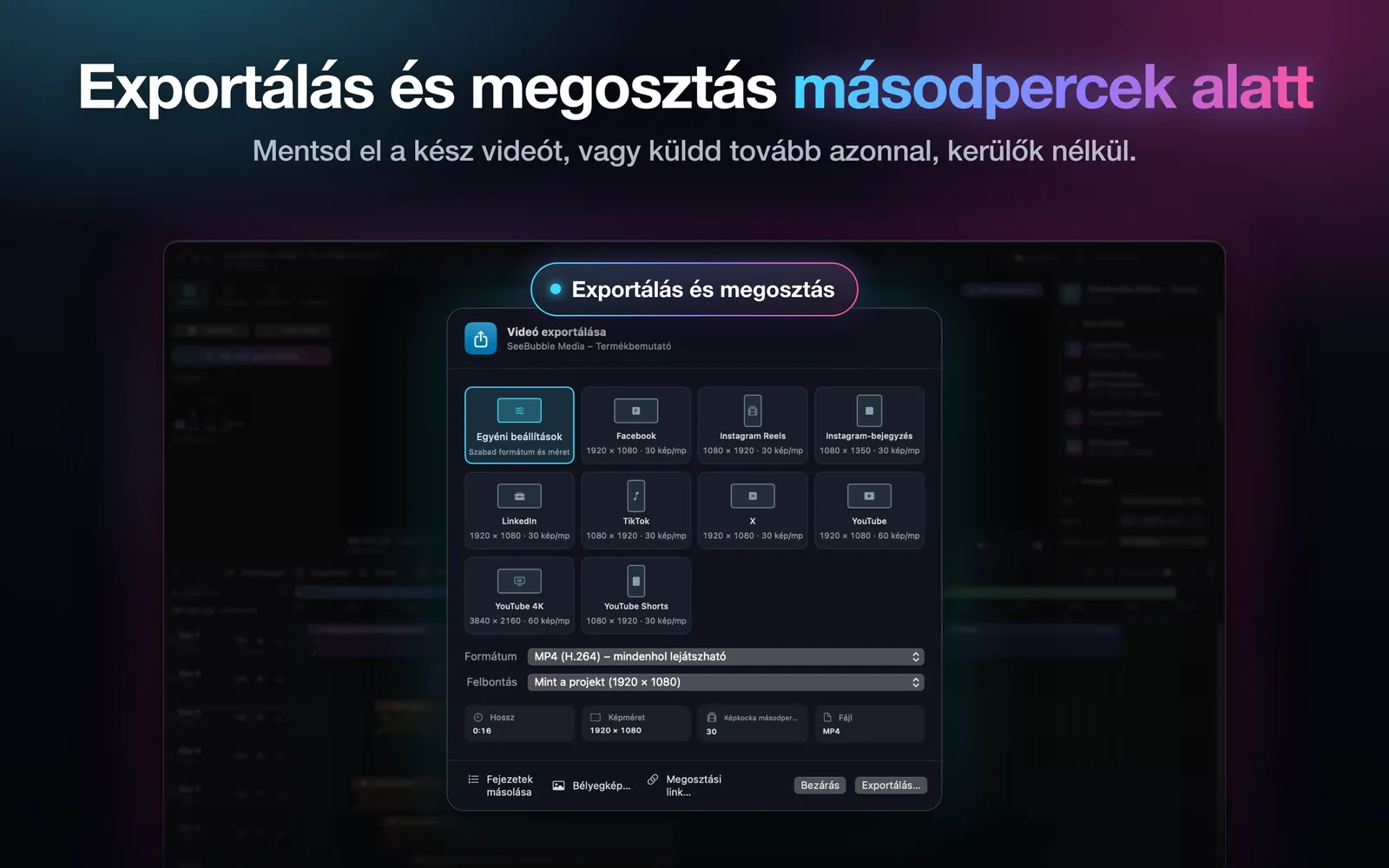
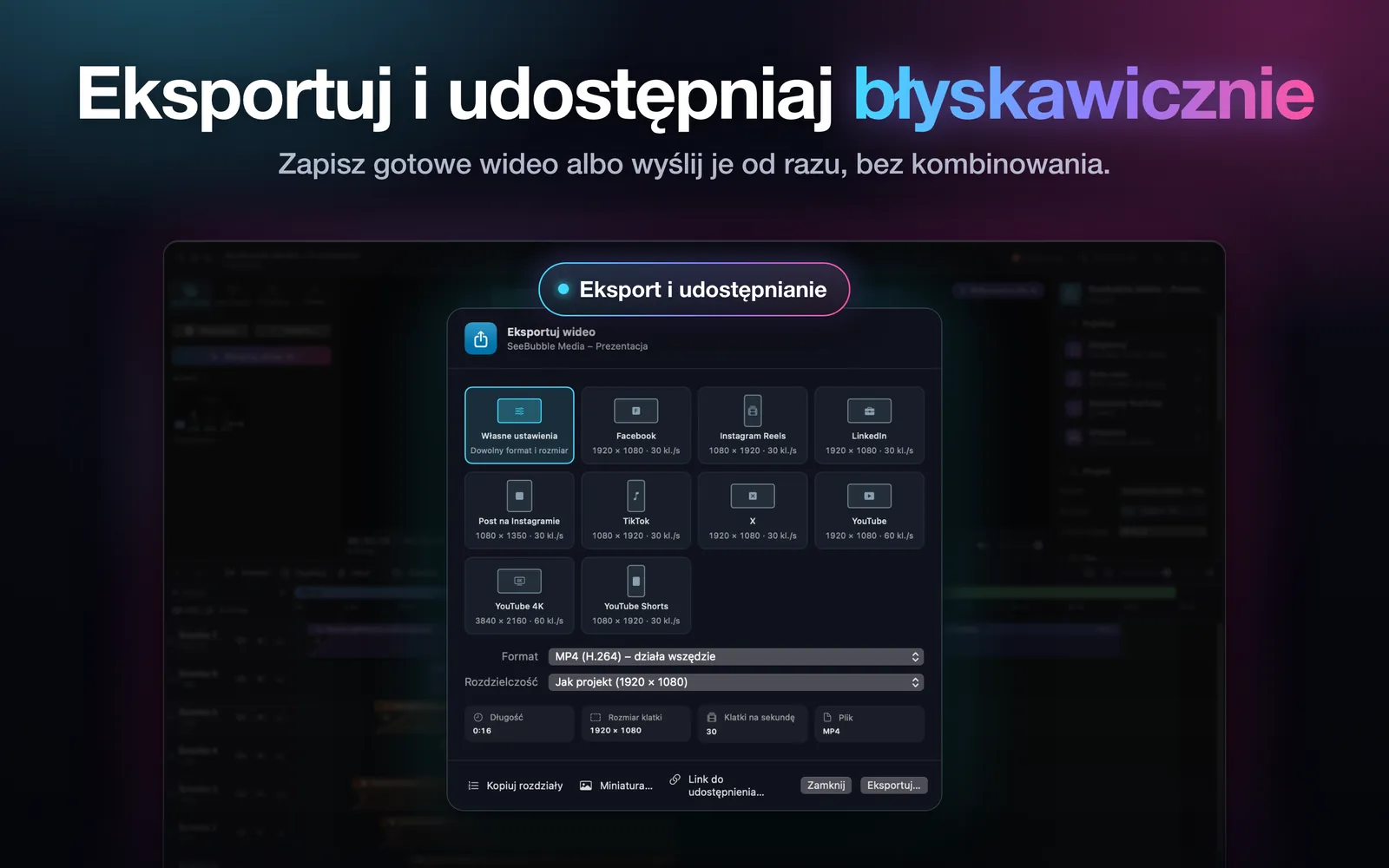
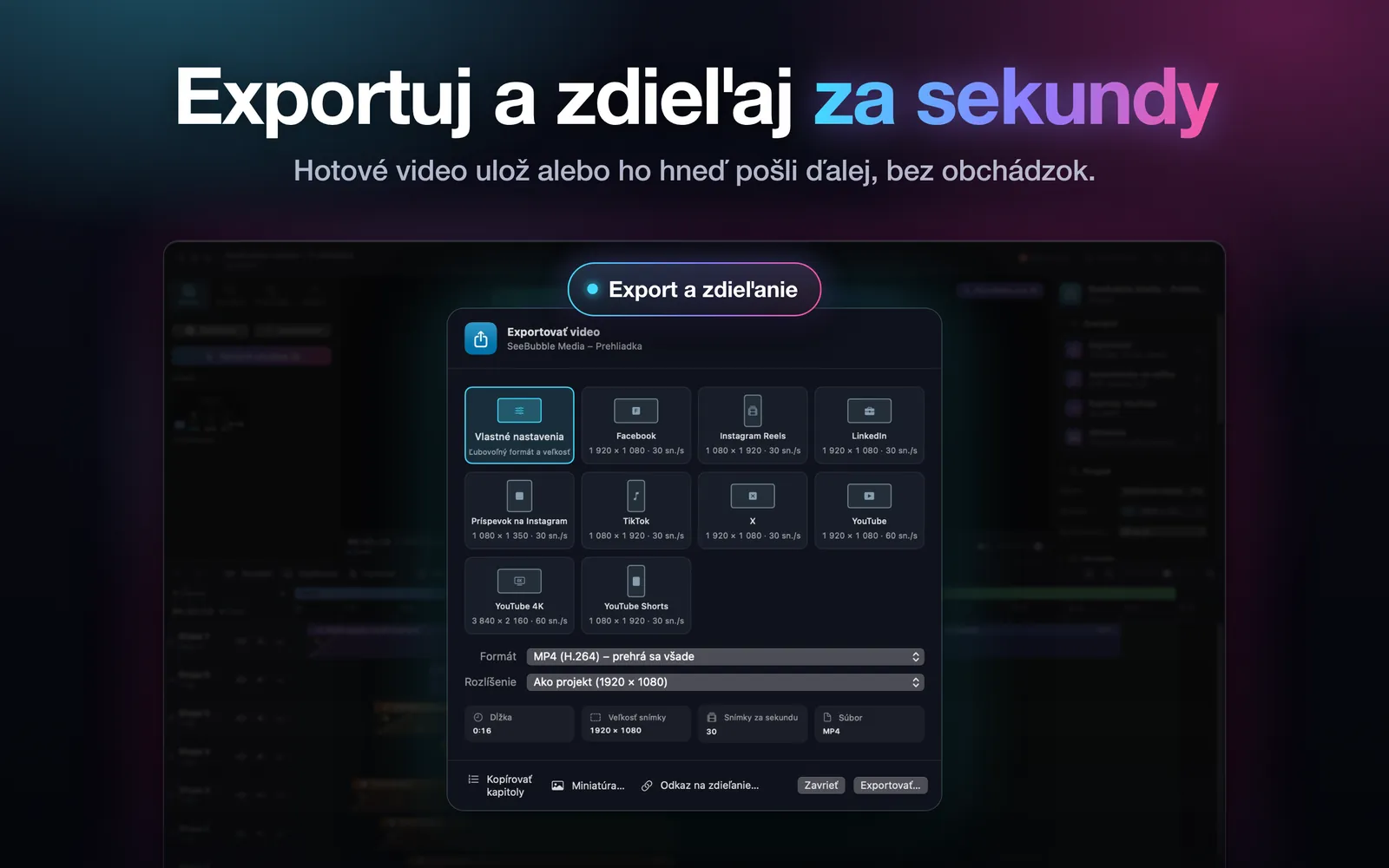
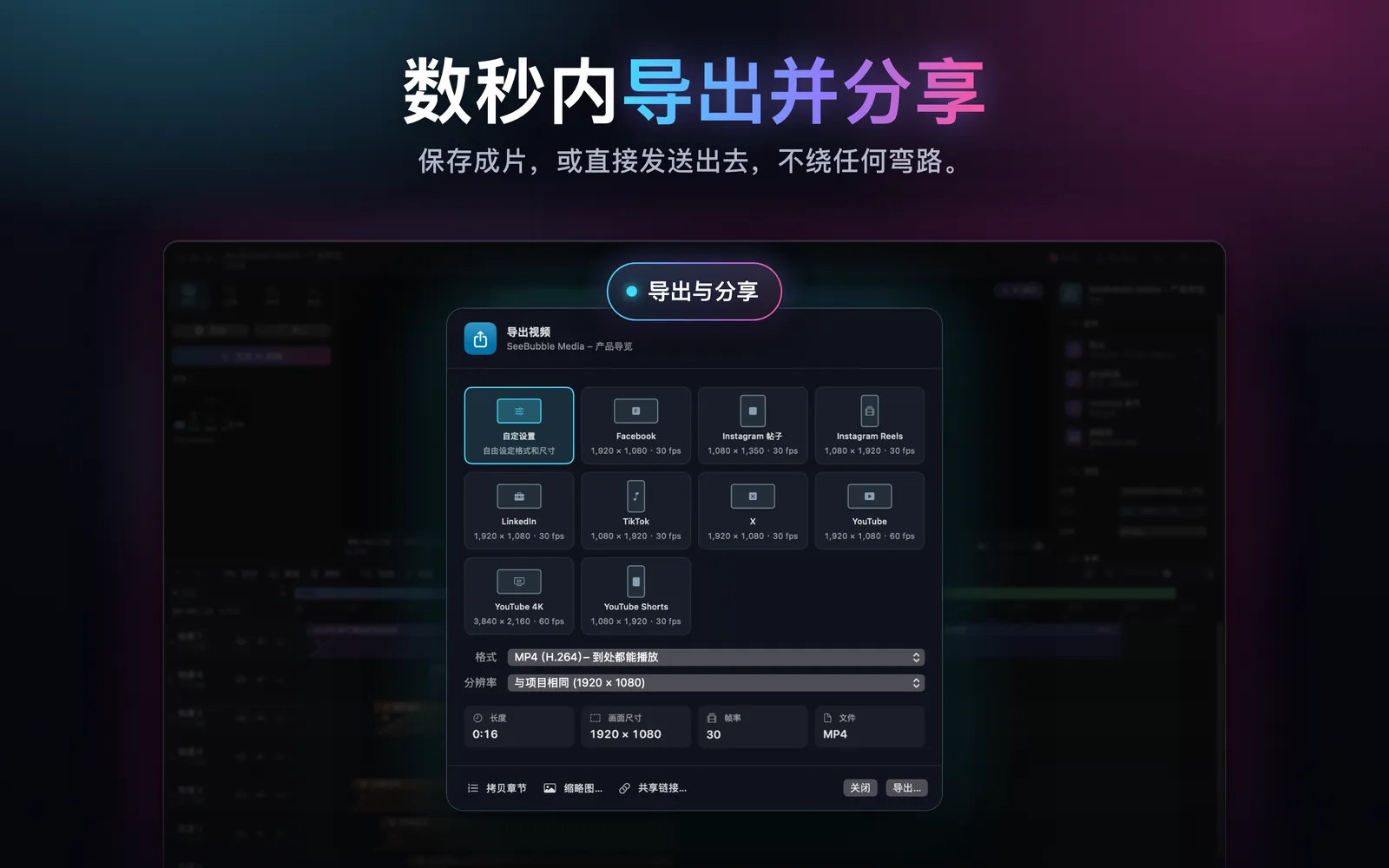
As MP4 or MOV, with presets for YouTube (including 4K and Shorts), TikTok, Instagram, Facebook, LinkedIn and X. Plus auto portrait 9:16, YouTube chapters from your sections and a thumbnail.
Optional: AI and YouTube upload
With your own API key (Anthropic Claude or OpenAI), the AI Director suggests titles, arrows, zooms and sections, and you can create AI images. With your own Google sign-in you upload videos straight to YouTube.
Support and frequently asked questions
The most important answers about TrackCast.
How do I allow screen recording?
Open System Settings → Privacy & Security → Screen & System Audio Recording and turn on TrackCast. Then restart TrackCast.
How do I allow camera and microphone?
macOS asks the first time. Later you can change it in System Settings → Privacy & Security → Camera or Microphone. The camera permission also covers the screen of a connected iPhone.
Where are my recordings stored?
In the Movies/TrackCast folder on your Mac.
How do I connect my iPhone?
Connect the iPhone with a USB cable and unlock it. The first time, tap “Trust” on the iPhone.
Where do I enter my AI key?
Under TrackCast → Settings → AI. The key is stored in the macOS keychain.
TrackCast needs no account and contains neither ads nor tracking. Data only leaves your Mac when you choose to use an optional feature such as AI, YouTube upload or a share link.