SeeBubble is a messenger that turns every conversation into a comic. You pick a character and a pose, type your message – and it shows up as a comic panel with a speech balloon, background and scene. That is why we call your chats comics or comic books.
SeeBubble is available for iPhone and iPad, for Android and as a web version in your browser. Everything is tied to your account, so you can switch devices any time.
Create a comic or join one via invitation.
Pick your character – every member has their own in a room.
Pick a pose, or let Auto-Pose read the mood from your text.
Start typing. Every message becomes a panel.
If you write several messages in a row with the same pose, they stay in one panel. Change the pose and a new panel starts – that is how a comic strip builds itself.
The app is free, and the standard packages with characters and backgrounds are included. There is no subscription.
If you like, you can buy Bubble Coins to unlock premium and exclusive characters, AI features or gifts. The current coin bundles and everything about payment are on the pricing page.
iPhone and iPad – with a dedicated iPad layout including a sidebar.
Android – phones and tablets.
Web – in your browser at app.seebubble.me, no installation, same account.
SeeBubble speaks nine languages, among them English, German, Spanish, French, Hungarian, Polish, Slovak and Chinese. The app follows your device language; under Settings → Language you can also pick one manually.
Package and character names appear in your language, otherwise in English.
At least 13 years. Your date of birth is required when you sign up; younger people cannot create an account. Additional protections apply to users under 18. Read more on the child safety page and in the terms.
Friends & rooms
Inviting people, creating comics, room roles.
9 questions
In Friends → Add you have several options:
Enter an email address and send a request.
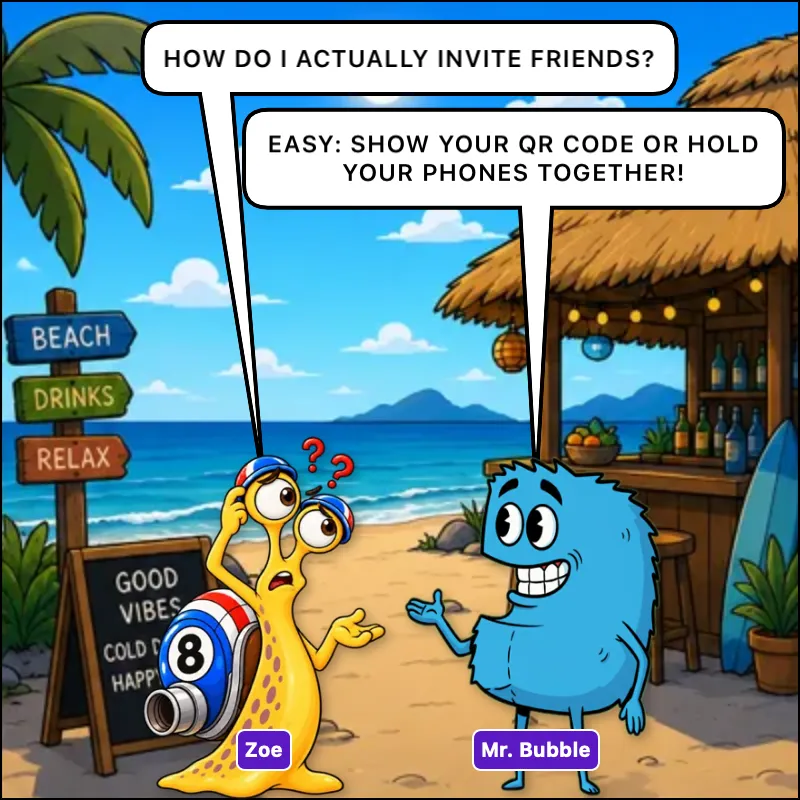
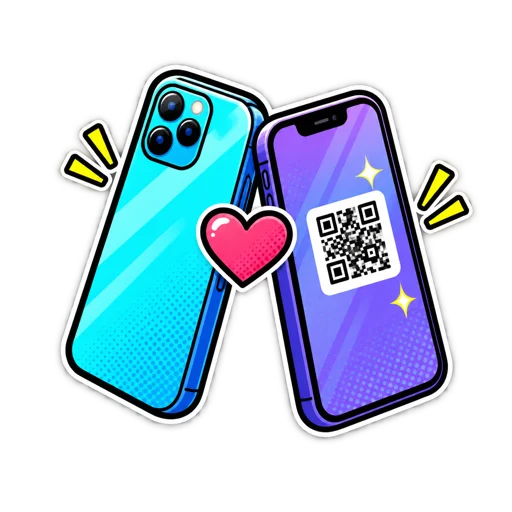
My friend code: show your QR code for your friend to scan with their camera – or share the link (also via AirDrop or Quick Share).
Scan QR code when your friend shows you theirs.
Hold phones together when you are standing next to each other.
A friendship only starts once both of you agree.
The friend code is a QR code containing your personal invitation link. Your friend simply scans it with the phone camera – SeeBubble opens and asks whether you want to become friends. You can also copy or share the link.
Each code is valid for one person. For the next friend, tap “Create new code”.
Both of you open Friends → Add → Hold phones together and hold the backs of your devices against each other.
iPhone to iPhone: As soon as the devices are close enough, the phone vibrates and you see each other's names. Both confirm. iOS asks for “Nearby devices” and “Local network” permissions.
Android: The phone passes the friend link via NFC while the screen is open. NFC needs to be on – otherwise your friend simply scans the QR code shown on screen.
Afterwards SeeBubble asks whether you want to open a room or start a comic book right away.
If you signed in with Apple and chose “Hide my email”, nobody knows your real address – so others cannot find you that way. That is intended, not a bug.
Share your friend code (QR or link) instead, or hold your phones together. SeeBubble deliberately has no public name directory.
In the Comics tab, tap New comic, enter a name and optionally a description, and pick members from your friends list. Later you can add members in the room settings, invite via link and decide which character packages are allowed in the room.
For a quick one-to-one chat, tap a friend in your friends list and choose Start chat.
Open the room settings (or tap Invite on the comic card) and choose Invite via link. You can copy the link or share it directly. Whoever opens it is asked whether they want to enter the room.
Note: anyone with the link can join. Only share it with people you want in the room.
Whoever creates a comic is its owner. Only the owner (or a server admin) changes the room settings: adding or removing members, appointing moderators, choosing the allowed comic packages, allowing reminders, switching on “Only moderators write” and deciding whether new members see the earlier history.
Moderators may additionally change the background and the room look and ban members. Everyone else is a member and simply chats along.
In the room settings you find Leave / delete room. As a member you leave the room; you can only come back with a new invitation.
As the owner you can transfer ownership and then leave – or delete the room for good in the danger zone. All messages are gone then, and that cannot be undone.
The Choose background button sits in the left column of the chat room. You can search, favourite backgrounds with the heart and pick moods such as morning, day, evening and night. The choice applies from your next message on.
If you do not see the button, you are just a member of this room: only owners, moderators and admins may change the background. That is not a bug.
Characters & packages
Picking characters and poses, loading packages, effects.
10 questions
In the chat room, tap Choose character on the left. The picker shows the characters of the packages allowed in this room – one tab per package, plus a search. Use the star to save favourites; they appear up front under Favourites, on all your devices.
Under each character you see who in the room has already chosen it. If you have no character yet, the picker opens automatically. If you still want to write without one, tap the ghost button Continue without a character.
Next to the input field you open the pose wheel, or a grid when a character has many poses. Every character has its own poses – from happy and angry to drinking coffee or eating pizza.
With Auto-Pose, SeeBubble reads the mood from your text and picks the matching pose for you; above the input field you see “Auto-Pose: …”. In the settings, Quick poses on the right puts your most-used poses right next to the input field.
Characters are sorted into groups such as male, female, animals, aliens and creatures. At the top of the character picker, use Character group to filter by a group, or All to show everything again. The name search helps too.
Standard – badge “Included”. Belongs to everyone, loads automatically, costs nothing.
Premium – costs coins. Buy the whole set or single characters from it; the set is cheaper than the sum.
Exclusive – limited edition. Each character is sold individually with a serial number (“Only 3 of 50 left!”) and comes with a certificate of authenticity. Sold out means sold out.
Private (secret) – visible only with an activation code, on loan.
The owner of a room decides which packages may be used there.
No. The app loads standard packages at start-up, purchased packages right after the purchase, and when you enter a comic that needs more characters they are fetched on the fly – you see the progress in the chat. The Packages tab only keeps an Update button for when you want to check yourself.
When something in a package changes – a new pose, say – your device only downloads the changed files instead of the whole package. That saves time and data.
Automatic updates and installs run on Wi-Fi only by default; until Wi-Fi is available the package card shows “Waiting for Wi-Fi”. Under Profile → Downloads, switch on Also download over mobile data to load on the go. Anything you tap yourself always downloads.
In the Packages tab under Enter activation code. The code unlocks a private (secret) package – on all your devices, because it is tied to your account.
An unlocked character is on loan: you find it under My characters → On loan via code and can return it any time. Existing comics stay complete.
Every exclusive character is issued with a serial number (“Your number 7 of 50”). Under My characters you see each character's certificate with number, authenticity code, QR code, origin (bought, gifted, taken over) and the chain of owners. Number and code are fixed from the moment the piece was issued and travel with it when gifted.
With Verify certificate anyone can check a code or QR code – for privacy reasons we do not reveal who owns the piece.
In the chat, tap + → Effects, pick an effect from your installed packages and place it freely: move, rotate, scale up or down. For each message you decide whether it sits in front of or behind the character – sound words like “Brrrr” usually go in front, stars or hearts behind. Apply attaches the effect to your next message; a chip above the input field shows it.
Yes. Under Profile → App skin / design you choose your colour scheme. Designs arrive as style packages from the server, so new ones appear without an app update.
Balloons & messages
Balloon types, replies, attachments, editing.
9 questions
With the floating buttons on the left of the chat room you choose the balloon type:
Speech – the normal speech balloon.
Thought – the thought bubble with the little circles.
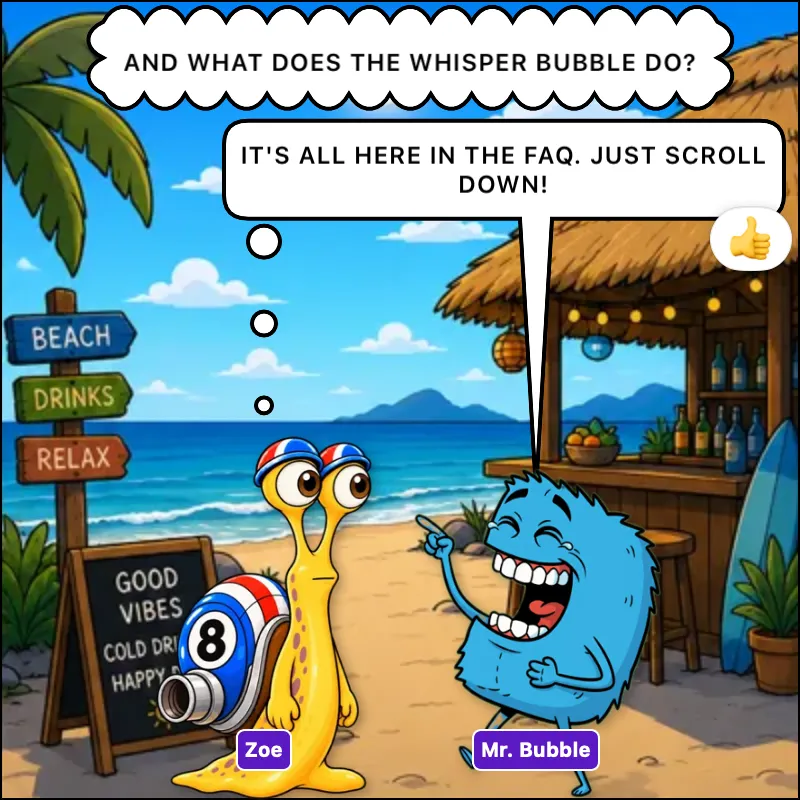
Whisper – dashed and quiet.
Call in – up to 100 characters. Your character stays off-screen, the balloon reaches in from the edge, and the others see “Your nickname calls in: …”.
Narrator – a box without a speaker, for system notes and narration.
Tap the panel and press and hold the balloon (Android: long press, web: right-click). The menu offers:
Copy – the text to the clipboard.
Reply – your reply quotes the message (“Reply to …”).
Quick reply – an emoji as a reaction.
Edit – only for your own messages.
Info – who has read the message, reactions, “Last edited”.
Report message and – for owners and moderators – Ban user.
For photos and videos without text you get Reply, Quick reply and Info.
Yes, your own ones. Press and hold the balloon and choose Edit. A banner “You are editing your message” appears; save with the check mark. Others then see “Last edited” in the info.
Type @ – a list of room members with profile pictures opens; on a computer the Tab key autocompletes. The mentioned person appears with their character in your panel. With @Mr.Bubble you call the AI character, if it is active in the room.
Via the + menu next to the input field: Gallery, Camera, Record video, File, Paste from clipboard, Send location (as a map) and Send contact. The attachment first appears as a preview you can still discard; an accompanying text goes along as its own message. Images and GIFs from your keyboard can be pasted straight into the input field.
SeeBubble uses your location and contacts only at the moment you send them – nothing is tracked in the background or uploaded. All files of a room are listed with the /dateien command.
Yes. Record a voice message in the chat; the microphone is only active while you record. In the settings, Play voice messages immediately decides whether incoming recordings play automatically.
Zoom (close-up) in the left column – or the /z command – brings your character right up close. Perfect for dramatic moments and secrets.
If a message consists of a link only, it becomes a link card that opens with a tap. If the link sits inside text, the message stays a normal speech balloon.
The chat room has a search that jumps to matches – “Next” takes you further. You can also turn special moments into chapters: pick a time range, mark the start and end panel, give it a name and tags. On request the AI suggests chapters; that costs coins from the room owner's balance.
Extras & commands
Polls, weather, reminders, Mr. Bubble.
6 questions
Tap + → Create poll, enter your question and up to 8 answers and decide whether multiple choice is allowed. Everyone who votes appears with their character at the chosen book – so you see at a glance who is for what. Closed polls show the result with a tap on the book.
Type /weather Graz (or /wetter) and SeeBubble replies with a weather balloon for that place. You get the current weather, the 10-day and hourly forecast, weather warnings and with -astro sunrise, sunset and the moon phase.
On iPhone the data comes from Apple Weather, on Android and the web from open-meteo.com – the source is shown under each report.
Commands start with a slash. An overview opens in the app under Chat commands. The main ones:
/weather place – weather report, with -astro and -warn.
/zeit and /datum – time and date into the panel.
/remind – set a reminder for the room.
/z – zoom in on your character.
/dateien – browse all files of the room.
/addfriend name@example.com – friend request by email.
/adduser name@example.com – bring someone into the room (owners, moderators, admins).
@name – mention someone.
With /remind you create a reminder for the room right in the chat; it appears as a message at the chosen time. The room owner enables this with Allow reminders and sees what is scheduled under Manage open reminders.
Mr. Bubble is SeeBubble's AI character. The room owner enables him in the room settings under AI assistant Mr. Bubble. After that you call him by mentioning Mr.Bubble in a message – he replies as his own character in the comic.
His replies cost coins. If Anyone may call Mr. Bubble is on, the member who calls him pays. If a call fails, the coins are refunded.
The settings include Read messages aloud. The voices come from the server and match sender and character. If voice output is currently switched off, the app stays silent – that is not a problem with your device.
Coins, shop & gifts
Balance, purchases, gifts, offers.
7 questions
Coins are the balance in your account. You need them for premium and exclusive characters, for Mr. Bubble and AI chapters, and to send gifts to friends. Standard packages never cost coins.
Coins do not expire, but they cannot be paid out or exchanged back into money. All details: pricing and terms.
In the Packages → Coin shop tab. On iPhone the purchase runs through your Apple account, on Android through Google Play, on the web through our payment partner Paddle. Receipts are available from the respective provider. Some bundles come with bonus coins – it says so right on the tile.
Sometimes the purchase is still waiting for the store's confirmation – a moment of patience or restarting the app usually helps. If the coins are still missing, send us the receipt (order or transaction number) at martin.bundschuh@seebubble.me. We will credit them.
Under Packages → Gifts & Offers you put a gift together in four steps: pick a friend, pick the content (coins, an exclusive character or a premium package you own), write a message, send. The coins are taken from your balance immediately and held in escrow.
The recipient sees “Unwrap gift” or “Decline” – with confetti when unwrapping and a button to say thanks. If a gift is not opened within 14 days, it returns to you. Gifting works between friends only, and there are daily limits; whatever is not possible in a given case, the app tells you right when you choose.
Yes, for coins. Under Gifts & Offers, create an offer to another user. If they accept, you receive the coins and the character moves to them together with its serial number. Only one offer per character can be open at a time. Premium characters can be gifted, but not sold.
Yes. In your profile you find your invitation link – either with friendship (you are friends automatically after sign-up, valid for one person) or without friendship for groups and notice boards. Anyone who signs up through it earns bonus coins for both of you. They are credited once the email address is confirmed.
Coins are credited immediately after payment; that fulfils the contract, so a withdrawal is usually not possible afterwards. For double charges, technical errors or unauthorised payments we will of course help.
Purchases made through the App Store or Google Play can only be refunded by Apple or Google. All routes and deadlines are on the refund policy page.
Account & sign-in
Signing up, password, profile, multiple devices.
6 questions
You can sign in with Apple, with Google, with Facebook or with email and password. When you sign up we need your first and last name, email, date of birth and country; a nickname and a referral code are optional. You can sign up in the app or on the web via the sign-up page.
After sign-up we send a confirmation email – please also check your spam folder. In the app you can request it again with Resend email. Rewards, including those for invited friends, are only credited after confirmation.
If no email arrives at all or the app rejects your sign-in, write to us. We will check and activate your account manually.
Forgot it: tap “Forgot password” on the sign-in screen and follow the link in the email. Change it: in Profile → Change password enter the current and the new password. A password needs at least 6 characters.
In Profile → Edit. For the picture you can take a photo or choose one from your gallery and crop it – or use a comic character as avatar. A new nickname shows up in your comics right away; others see it the next time they open the room.
Tip: in the friends list you can give friends a private nickname that only you see.
Yes. Sign in everywhere with the same account – comics, friends, coins, purchased characters and favourites are identical on all devices. What you read on one device counts as read on the others.
For the web version you do not even need to type: open app.seebubble.me in your browser and scan the QR code shown there with the app under Profile → Scan QR code (web login).
In the app under Profile → Delete account. For safety we ask for your password (with Apple, Google or Facebook possibly a fresh sign-in). Deletion takes effect immediately and cannot be undone; coins and unused purchases are forfeited.
Alternatively, send us an email from your registered address with the subject “Delete account”. What exactly is deleted and what has to remain for legal reasons is explained on the delete account page.
Export & display
PDF, video, sharing, how a room looks.
5 questions
Open the room settings and under Export choose Export as comic-book PDF. You get an A4 booklet with a cover, six panels per page, page numbers and a rights notice, which you can share or save to your downloads.
Also under Export → Share as short video (Reels). Select the panels (or automatically the last N) and set how the video plays: story mode with animated build-up, storytelling timing, duration per panel, intro, background music, watermark and logo. Then save the video or share it right away.
Yes. Share an image, video, audio file, text or document from any app via the share menu to SeeBubble, pick the comic – and the attachment is waiting there ready to send.
Yes. Owners and moderators set the panel colour in the room settings anywhere from full colour to black and white, and can add retro film grain with scratches. It applies to all members and also to PDF and video exports.
The display settings offer a zoom factor, a grid view with selectable columns (handy on tablets), spacing between panels, show names, show timestamps and highlight my own balloons with outline and text colour. These settings apply to you only.
Safety & legal
Reporting, blocking, child safety, privacy.
5 questions
Tap the panel and press and hold the balloon.
Choose Report message and briefly state the reason.
We review every report. Under Friends you can also block people; the “Blocked” tab lets you undo that. In the settings you choose how messages from blocked users are censored (blur or pixel pattern). Owners and moderators can additionally ban troublemakers from the room.
SeeBubble is 13+, rooms are invitation-only, friendships need mutual consent, and everyone can report and block. We have zero tolerance for abuse: content is removed, accounts are permanently banned and cases are reported to the authorities.
If you notice something, report it in the app or by email with the subject “Child safety” – please do not attach any recordings. Everything about this is on the child safety page.
If someone breaks the rules, moderation can issue an official warning, suspend the account temporarily (“Suspended until …”) or ban it permanently. Removed messages show as “Removed by moderation”. If you have questions about a decision, write to martin.bundschuh@seebubble.me.
As little as possible. The app uses location, contacts, microphone and camera only at the moment you send, record or scan something – nothing runs in the background, your address book is never uploaded. Which data belongs to your account and which rights you have is explained in the privacy policy.
Yes. You may share your comics, panels, PDF and video exports on social networks and elsewhere. The rights to the comic characters themselves remain with SeeBubble Media. The exact rules are in the terms.
Troubleshooting
Notifications, counters, packages, versions.
9 questions
The number on a comic tile is the unread messages in that room; the number on the app icon is the total. As soon as you open a room, the number drops – on your other devices too. Muted rooms appear grey with their own number and do not count towards the total.
In the room settings under Notifications choose Always notify, Schedule active or Disabled (muted). With Schedule & quiet hours you set for each weekday when you want notifications from this room – the times follow your time zone.
Does SeeBubble have permission to send notifications? Check your device's system settings.
Is the room set to Disabled, or is your schedule active right now?
For the room you currently have open, no notification is sent on purpose.
Android: do not force-stop the app – notifications only arrive again once you reopen it.
Tip: notifications show the sender's comic character, and tapping one takes you straight to the right room.
Does the package card say “Waiting for Wi-Fi”? Then you are on mobile data – switch to Wi-Fi or allow mobile downloads under Profile → Downloads.
Offline, the app waits. After three failed attempts it only retries when the network changes – switching between Wi-Fi and mobile data helps.
Open a comic that needs the characters: that always fetches them.
Tap Update in the Packages tab. Keep the app open meanwhile; nothing loads in the background.
The character picker only shows packages allowed in the room. The owner decides that under Manage comic packages – ask them to allow the package. Purchased packages are also tied to your account: sign in with the account you bought with. In a pinch, the ghost button lets you keep writing without a character.
SeeBubble for Android once moved to a new store listing. If you have the old version, simply install the new one from the Play Store – coins, characters, friends and comics are tied to your account and come back once you sign in. When a newer release is available in the store, the app reminds you at start-up.
At the very bottom of your Profile it says “Version … (Build …)”. When you write to us, please include this and your device – it helps us find the cause much faster.
When opening a large comic, the app first builds all panels; during that time (a few seconds at most) the content ignores touches, but the header with “Back” always works. Afterwards you land where you last stopped reading – even without internet.
Send us a short note on what you did and what happened, plus your device and app version. A screenshot helps enormously. You will get a fix or at least an update – usually within two business days. For ideas and bug reports that interest others too, the forum is the best place.
Nothing found – try another word or write to us below.
Still have questions?
Didn't find it? We'll help in person.
Every message reaches us directly, not a ticket system. We usually reply within two business days, often sooner.